


Better prompts for better AI results
Five habits that turn generic AI output into exactly what you need

The core idea
We've studied how millions of users interact with AI tools. We've seen one trend emerge above them all, and every major AI lab — OpenAI, Anthropic, Google — agrees: AI results get better when you give it more.
Think of any AI tool like a smart coworker who just started today. They're talented, but they have zero context on your work. The more you explain what you need, the better the output. Now imagine having to type out that explanation every time instead of just saying it. When you type, you keep things short. You trim details. You skip context that feels like too much effort to write out.
When you speak, the opposite happens. You naturally include the background, the constraints, the specifics. That same idea applies to AI tools: the prompts you'd say out loud are almost always more detailed than the ones you'd type. Wispr Flow lets you speak your prompts naturally and turns them into clean, formatted text. Your prompts end up more specific without any extra effort.
Here are the five habits that make the biggest difference.
Write me a blog post about productivity tips.

Write a blog post about how I restructured my morning routine after burning out last year. The audience is founders in their 30s who are working too much. Keep it conversational, not preachy. Around 800 words. I want it to feel like advice from a friend, not a listicle.
Why not just use the built-in voice mode?
Quick answer before we get into the habits, since this comes up a lot.
Most AI tools (ChatGPT, Claude, Gemini) have a built-in voice mode. They're great for conversation, but they give you a raw transcript: every "um," false start, and mid-sentence correction stays in. You have to go back and clean it up. And each one only works inside its own app.
Wispr Flow gives you clean, ready-to-use text. Filler words removed, corrections handled automatically ("let's meet at 5, actually 6" becomes "Let's meet at 6"), paragraphs and lists formatted. It also learns your unique terminology and works in every app or website, not just one.
Help me write an article with two no three reasons why whisper flow helps me write better AI prompts. One it's faster two it's more accurate three it works everywhere.
Help me write an article with three reasons why Wispr Flow helps me write better AI prompts.
1. It's faster.
2. It's more accurate.
3. It works everywhere.
Tip 1: Give AI the full picture
AI tools can't read your mind. Every detail you leave out is something it has to guess, and guessing produces generic output.
Before you send a prompt, try to include:
- Who the output is for
- What you've already tried
- What format you need
- What constraints matter ("under 200 words," "non-technical audience," etc.)
Weak prompt:
"Write a follow-up email."
Stronger prompt:
"Draft a follow-up to the call I had with the Notion team on Thursday. We discussed a joint case study but they seemed hesitant about the timeline. I want to nudge without being pushy, and also outline some of the value that they will get from the collaboration."
The second version gives your AI tool everything it needs. And it's exactly the kind of thing that comes out naturally when you talk it through instead of typing it out.
Describe the destination, not the directions
Here's a shift that makes a big difference: instead of telling AI how to do something step by step, describe what you want the end result to look like. AI is good at figuring out the process. Your job is to paint a vivid picture of where you want to end up.
Micromanaging the process:
"First research X, then summarize your findings, then write three bullet points for each finding."
Describing the outcome:
"I need a one-page brief on X for my VP. She cares most about market size and competitive risk. Casual tone, under 500 words, with a clear recommendation at the end."
The second version gives AI a clear target and the freedom to get there the best way it can. Speaking makes this natural: when you talk, you tend to describe what you want ("I need something that feels like..."). When you type, you tend to write step-by-step instructions.
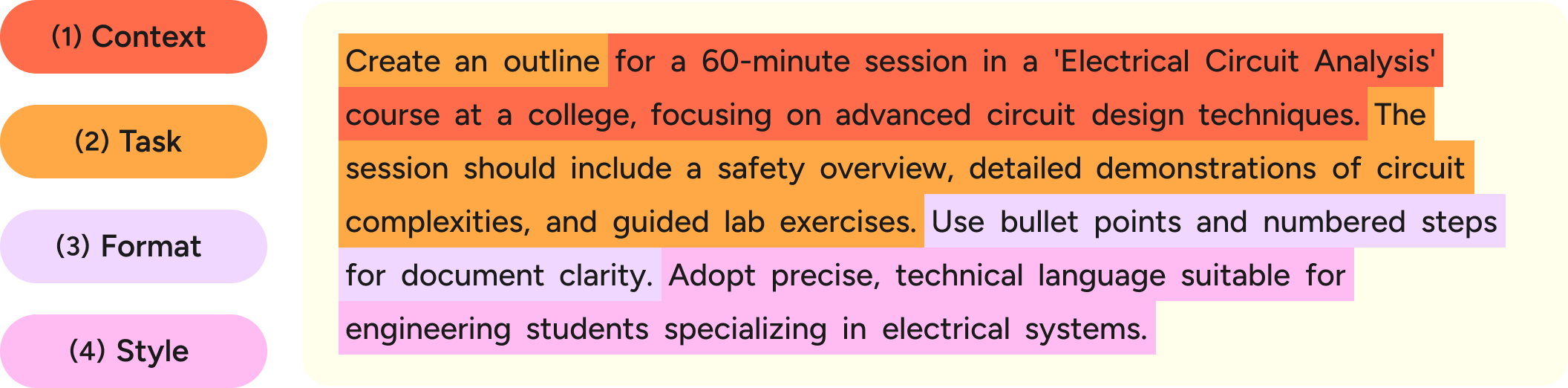
Tip 2: Set up the role, format, and constraints upfront
One sentence of setup before the actual task makes a huge difference.
Role: "You're a senior editor reviewing this for a general audience."
Format: "Give me three options with tradeoffs for each."
Constraints: "Under 500 words. Friendly, not corporate."
This is called "role prompting" and it's one of the most effective things you can do. It's the same thing you'd do when asking any coworker for help: "Hey, can you look at this like a customer would?" or "Keep it short, I just need the main points."
Without setup:
"Write a follow-up after our product demo."
→ Generic, long, could be from anyone to anyone.
With one sentence of setup:
"You're a sales rep who already has a good relationship with this prospect. Write a casual follow-up after our product demo. Under 100 words."
→ Sharp, personal, right length.
Say what you want, not what you don't want
When describing what you need, frame it positively. AI tools are much better at hitting a target you describe than avoiding a list of things you don't want.
Negative (less effective):
"Don't use jargon. Don't use buzzwords. Don't sound like a marketer."
Positive (more effective):
"Write in plain English a 16-year-old could read aloud. Use short, concrete words. Replace 'leverage' with 'use.' Replace 'scalable' with 'works at any size.'"
The positive version gives AI something to aim at. The negative version just tells it what to dodge.
Tip 3: Iterate. Don't accept the first draft.
The best AI results come from a back-and-forth, not a single message. The key is making your follow-ups specific:
Vague (doesn't help much):
- "Make it better."
- "Tighten the intro."
- "More professional."
Specific (actually useful):
- "The intro is too generic. Start with the specific metric we hit last quarter instead of the broad industry trend."
- "This is going to someone who was frustrated with us on the last project. Make the tone more careful and acknowledge that things didn't go smoothly before jumping into the new proposal."
- "I like the structure, but the third section reads like it's for our internal team. Rewrite it assuming the reader has no context on our product."
- "Good, but too long. I need this under 150 words and in a more casual tone because it's going in a Slack message."
A few rounds of specific feedback and AI gets surprisingly close to exactly what you want. This goes especially fast when you're speaking your follow-ups instead of typing them, since each one takes a few seconds.
Tip 4: Break big tasks into steps
For complex work, don't try to get it all in one prompt. Work through it in pieces.
Example:
- "Help me research the competitive landscape for this feature. What are the main players doing?"
- (review) "Outline a positioning doc based on that. Three sections: where we fit, what's different, and the main risk."
- (review) "Write the first section. Focus on benefits, not features."
- (review) "Make it shorter and cut the second paragraph. It repeats what's in the intro."
This is called "prompt chaining" and works better because each step gives the AI tool a focused task, and you catch problems early instead of at the end. It's easier to work this way when each follow-up is as simple as saying a sentence.
Tip 5: Show an example of what good looks like
When you have a specific tone or style in mind, share something concrete to aim for.
With an example:
- "Here's a summary from a previous project. Match this structure but update it with the new strategy."
- "I'm attaching an email I liked the tone of. Write the new one in a similar voice."
With a description:
- "Write this the way a founder would talk to their team. Short sentences. No jargon."
- "Make it sound like a text to a friend, not a business email."
This is called "few-shot prompting" and it's one of the most reliable ways to steer output. A vague instruction like "professional but approachable" can mean different things to different people. A concrete example or description provides an actual target.
Bonus tip: Ask the AI what it needs
Not sure how to start a prompt? Ask the AI tool itself.
Try: "What information do you need from me to do this well?"
AI tools are good at telling you exactly what context they need. If you say "I need help writing a job description" and then ask what information it needs, it'll ask about the role, seniority, team, tone, and length. You fill in the blanks, and the output is dramatically better than if you'd just said "write a job description for a product manager."
This works across every AI tool, and it gets more useful as models improve.
Flow features built for this
The five habits above work no matter how you prompt AI. But Wispr Flow has a couple of features that make some of them automatic.
Prompt Engineer Transform
You know how we said AI gets better when you give it more context, a clear role, and specific format? The Prompt Engineer transform does that structuring for you.
You speak your messy, unstructured thoughts. Flow's Prompt Engineer transform turns them into a clean, optimized AI prompt with a clear title, role, task, context, and format. You don't have to think about prompt structure at all.
How it works: Open Flow's Hub → Transforms → Prompt Engineer (Opt+2). Speak what you need, and Flow restructures it into a well-organized prompt before it reaches your AI tool.
I need help writing product descriptions for a skincare brand. The AI should be warm, aspirational, and concise---
**Title**
Skincare Product Description Prompt
**Title**
(1 concise line)
**Role & stance**
(who the model is and how it should behave)
**Task**
(what the model must do)
Snippets
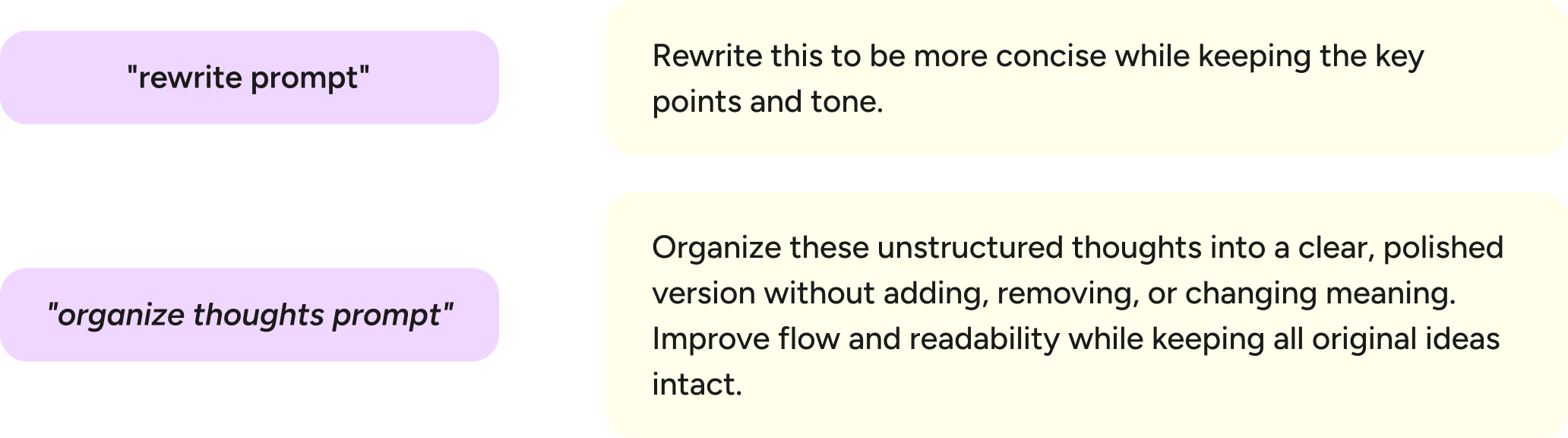
If you find yourself using the same prompt starters or setups over and over, save them as Snippets. Snippets are voice shortcuts: you say a trigger word, and Flow expands it into a full block of text.
Example uses for AI prompting:
- Say "code review" → expands into: "You're a senior engineer. Review this code for bugs, performance issues, and readability. Be specific about what to change and why."
- Say "email draft" → expands into: "Write a professional but friendly email. Keep it under 150 words. Match my usual tone."
- Say "blog outline" → expands into your preferred outline prompt with audience, length, and formatting instructions already filled in.
This is especially useful for the setups from habit #2 (telling AI who to be and how to deliver). Instead of saying or typing the same role and format instructions every time, you say one word and they're there.
How: Open Flow's Hub → Snippets → create a new snippet with your trigger word and expansion text.
Two more things worth setting up
Most AI tools now let you connect directly to your other apps. Claude has Connectors, ChatGPT has integrations and GPTs, and Gemini works natively with Google Workspace. Instead of copy-pasting context, let your AI tool read the source directly.
How: In Claude, go to Settings → Connectors. In ChatGPT, explore plugins and integrations. In Gemini, connect your Google Workspace apps.
Use the best model available
These recommendations change as new models come out. Currently accurate as of May 2026.
Every AI tool offers multiple models, and the default usually isn't the most powerful one. For anything that involves real thinking, analysis, or long-form writing, switch to the most capable option.
Right now, that looks like:
- Claude: Opus 4.7 with adaptive thinking enabled
- ChatGPT: GPT-4o or o3 for complex reasoning tasks
- Gemini: Select the most capable model available in the model picker
It's usually a toggle or dropdown. Two clicks, big jump in quality.
.png)
See it in action
We've partnered with creators across different fields to show what this looks like in practice. Each one uses Wispr Flow to prompt AI tools for their specific work.
- See how Theoretically Media uses Snippets to save frequently used prompts and trigger them with just a few words.
- See Ruben Hassid's guide to prompting Claude.
- See Ruben Hassid's updated guide to prompting Opus 4.7.
FAQs
"Do I need to use voice for this?"
No. Everything here works typed or spoken. Speaking just makes a lot of it faster, especially including context and iterating.
"I'm not technical. Is this for me?"
Yes. None of this is technical. It's just communication: be specific, give context, iterate, work in steps.
"Won't this get outdated?"
The model recommendations might change (we'll keep those current). The core habits won't.
.webp)
Better prompts,
better results.
Wispr Flow turns the way you naturally speak into clean, detailed AI prompts. Works on any app, website, or device.

