
What's new
Keep up with the latest releases, improvements, and fixes.


Meet Canto, our first speech model
Flow now runs on Canto, the first speech model we've built ourselves. It's now rolled out for everyone, with nothing to switch on.
Most speech models are trained and tested on clean audio recorded in quiet rooms with good microphones. That isn't where people use Flow. You're on a train, in an open office, walking between meetings, or talking quietly so you don't disturb anyone. Canto was built and measured against those conditions instead.
On our evaluation of real-world English Flow recordings, 9.8 hours from more than 2,300 speakers, Canto had the lowest word error rate of every model we tested, including models from Google, OpenAI, AssemblyAI and Deepgram.
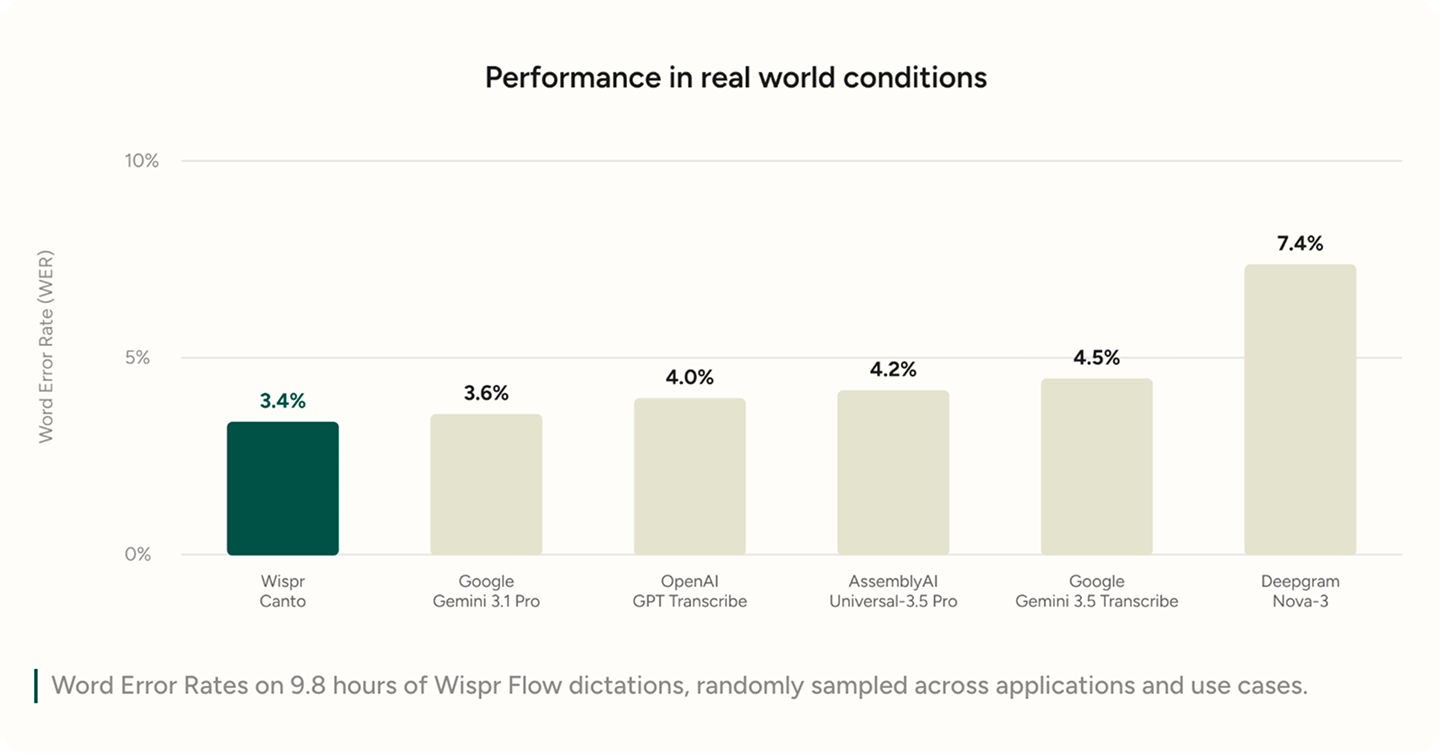
On a separate set built to stress-test the hardest audio, with background conversation, music, traffic, wind and whispered speech, Canto was the most accurate of the real-time models we tested.
We're already training its successor at more than ten times the scale, with better recognition in difficult conditions and broader language coverage ahead.
Read the full research post here.

Wispr Flow Notetaker is now live on Windows
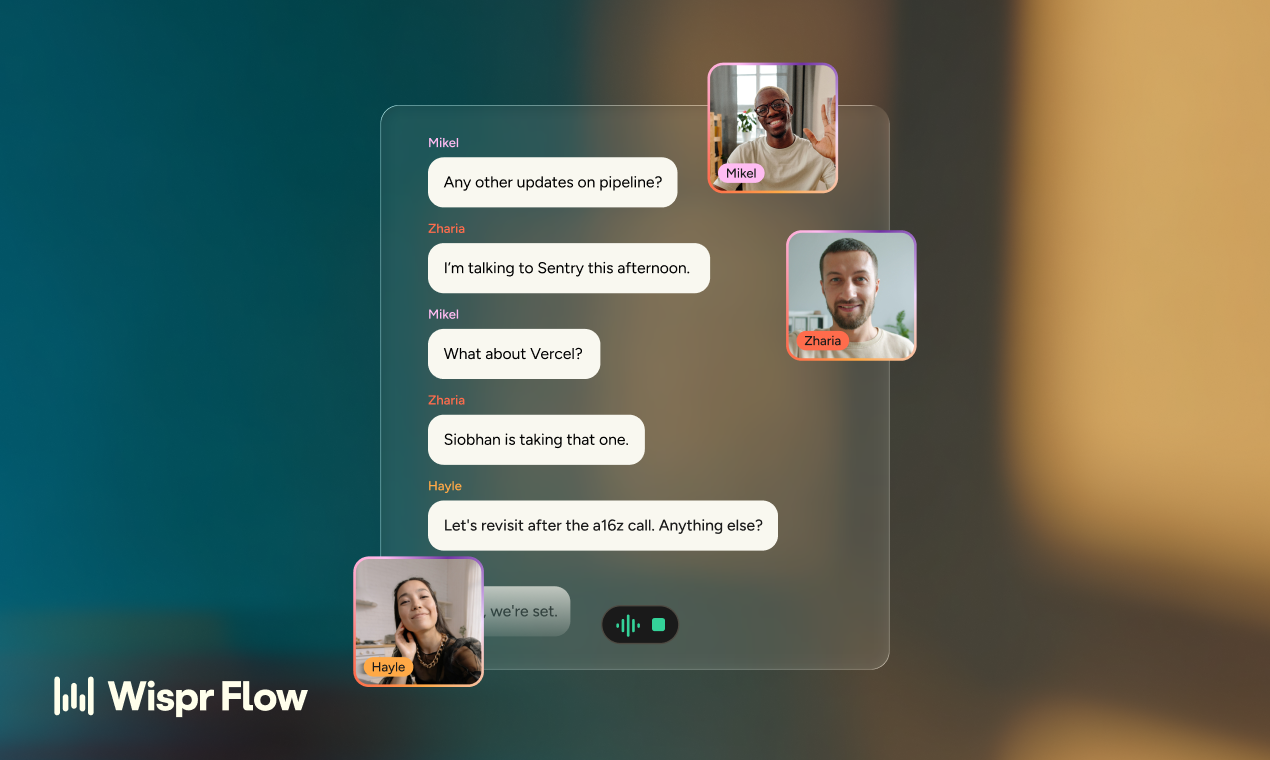
Notetaker is now available on Windows, alongside Mac. Here’s what it does and what we’ve added since the Mac launch.
Capture the details, then work from them
Notetaker detects meetings across the platforms you already use and offers to take notes. It uses your personal dictionary to help capture names, acronyms, and technical terms correctly so you can:
- Catch up during a call: Ask “What did I miss?” for a recap of the discussion so far.
- Find answers across meetings: Ask “What follow-ups do I owe people from my calls this week?” or “Based on the calls I’ve led this month, how could I ask better questions?” Answers include citations back to the meetings.
- Draft from your notes: Turn conversations into follow-up emails, project updates, or briefs directly in Notetaker.
Find it: Open the Notetaker tab in Wispr Flow.
Connect your meetings to your other work
Notetaker just added one-click setup for Gemini, alongside connections to Claude and ChatGPT. You can also connect to any other MCP-compatible AI tool.
Once connected, your AI tool can grab your meeting notes and transcripts along with any other files and tools you’ve connected there. You’ll be able to dictate complex prompts:
- For sales: “Compare the objections from my discovery calls this quarter with our objection-handling doc. Where are we not answering well?”
- For founders: “Draft this month’s investor update from the board call, my team syncs, and the metrics in this sheet.”
And your AI tool can pull the meeting context directly from Notetaker, no copy + paste required.
The MCP connection only grants access to meeting transcripts, not your dictations.
Learn more about using AI tools/MCP with Wispr Notetaker.
More updates since the Mac launch
- Meeting transcription in 21 languages: Including Spanish, French, German, Chinese, Japanese, Hindi, and Arabic. Summaries and other features can also work in other languages, but the experience may be unreliable. See all supported languages.
- Outlook calendar: Connect Outlook to see upcoming meetings in Notetaker and bring in calendar context. Google Calendar is also supported.
- Import from Otter: Bring your previous transcripts into Notetaker with speaker names preserved, so you can search old and new meetings together. Otter transcript imports require a paid Otter plan. Granola imports are also supported.
Controls for your organization
Admins can manage Notetaker access, sharing, and privacy restrictions across their organization.
Notetaker captures audio from your computer, so no bot joins the meeting. Always inform participants before recording. Organizations can also require users to confirm they’ve obtained consent before recording starts.
Find it: Organization settings in the admin portal. See Notetaker admin controls.

Import Your Otter Transcripts to Notetaker
You can now bring your Otter.ai meeting transcripts straight into Wispr Flow. Just drop in your Otter export and your meetings appear alongside everything else, with speaker names preserved instead of collapsed into a single anonymous voice. Imports run in the background, so you can keep working while your history fills in.
Find it: Settings > Notetaker > Import, or the import picker where you'll see the Otter tile alongside Granola.
[Help Center: Import your Otter transcripts into Wispr Flow Notetaker]
For Teams & Enterprise
- Assign teams at invite time: Admins can now pick which team a new member joins right from the invite form, for single invites or bulk batches, so new hires land in the right place from day one.
- Org-wide and department-wide dictionary words: You can now choose to share dictionary entries to either your whole organization or your department.
[Help Center: Manage Users and Billing]
Quality-of-Life Improvements
- Updates wait until you're done: Flow no longer restarts itself mid-task. It detects when you're actively working and holds pending updates until you step away.

A Smoother Sign-In Handoff
Signing in on Android now reliably hands you back to Flow no matter which provider or browser you used, and if the app isn't installed yet, you land on the Play Store instead of a desktop download page.
For Teams & Enterprise:
- Org-wide Notetaker controls: Admins can now turn Notetaker on or off for their entire organization from the admin portal with a single toggle, enforced across every member's account. There's a confirmation step before disabling, so it never happens by accident.
- New self-serve Growth plans: Teams can now buy a new Growth plan straight from the admin portal, choosing dictation-only or bundling in unlimited Notetaker, with monthly or annual billing shown per currency. Upgrade your whole team in a couple of clicks with most of the features of our Enterprise plan, no sales call required.
Dictate Through Any Mic, Including Virtual Ones
Flow now lets you pick virtual and routing audio devices, like Krisp, NVIDIA Broadcast, BlackHole, or VDI redirects, as your dictation mic. If you run your voice through a noise-suppression tool or work in a virtual desktop session, you can finally point Flow at exactly the mic you want.
Virtual inputs live behind a "Show other devices" expander, so nothing changes if you don't use them, and Flow won't auto-select a loopback device on you. Automatic mic selection stays safely on your real, physical microphones.
Find it: Settings > Microphone, or the mic switcher on the Flow bar.
Help Center: Using Wispr Flow Discreetly (Microphone Guide)
For Teams & Enterprise
- Daily teammates added digest: Admins now get a daily email summarizing every teammate who joined the workspace in the last 24 hours, whether they came in through domain auto-add, SCIM, or an invite link, so seat growth (and the bill) never comes as a surprise. Admins who don't want it can turn it off from the admin portal.
- Team trials for every joiner: Anyone joining a team for the first time now receives a 14-day trial, even if the team is already on a paid plan. New team members will not be billed until the first 2 weeks are complete.
Help Center: FAQs for Flow Pro, Team, and Enterprise plans
Shortcuts & Controls
- A clear "Done" button in Shortcuts: The Shortcuts dialog now has a primary Done button, so you always know when you're finished. Your shortcuts still save automatically the moment you set them, Done just closes the dialog.
- Hands-free made simpler: Double-tapping your Push-to-talk hotkey has always toggled Hands-free mode, and now the Shortcuts editor shows you a live hint built from your own keys so you don't have to guess. The dedicated Hands-free shortcut is also fully optional now: delete it and it stays gone.
Help Center: Use Flow hands-free
A Smoother Windows Experience
- A quieter startup: Flow now starts quietly in the background when it launches at login, instead of popping the hub window open. Your tray icon and Flow bar are ready immediately, and a restart you trigger yourself still brings the hub back.
Quality-of-Life Improvements
- Straight back to Flow after connecting apps: Connecting Notion, Google Calendar, or any other integration now brings you right back into Flow once the connection succeeds, with a redesigned confirmation page that names exactly what you just connected.
- A fresh look at sign-in: The desktop login screen has a redesign, with new full-motion slides showing what Flow can do while you sign in.
- Confirm before exiting the Notetaker tutorial: Closing the Notetaker guided tour now asks you to confirm instead of quitting instantly, so an accidental click or stray Esc doesn't wipe out your progress.
A Sign-In Flow That Actually Works
Signing in with Google on Android now happens in a secure in-app browser tab that returns you straight to Wispr Flow. No more landing on a random browser tab, an old page, or the Wispr Flow website after picking your account. If your sign-in gets interrupted, a resume prompt lets you pick up right where you left off.
Find it: automatic, the sign-in screen the first time you open Flow or sign back in.
Help Center: Login Issues with Wispr Flow
Reports That Never Get Lost
Issue reports, feedback, and transcription reports now keep sending even if you leave the screen. You'll get a confirmation wherever you are in the app, and the form clearly shows when it's busy: a spinner, a dimmed Send button, and a short note explaining why it's temporarily locked.
Find it: Dashboard menu > Report an issue or Share feedback, and Home > any transcript > Report.
Wispr Flow Notetaker is here
Today we're launching Wispr Flow Notetaker, our first product beyond dictation. It records your meetings, gets your words, names, and speakers right, and turns the conversation into transcripts and summaries you can act on. No bot joins your call, and it works on every meeting platform.
Where the accuracy comes from. Most notetakers hear a meeting cold. Notetaker walks in with context you've already built:
- The personal dictionary you've trained in Flow carries over, so your acronyms, product names, and industry terms come out spelled right.
- Speaker names come from the calendar invite, so "Biswaroop" doesn't become "Bishop" and the action item lands on the right person.
- You get a live transcript during the meeting. When it ends, Notetaker re-reads the entire recording with that context, which is where speaker names get attached and everything comes out sharper.
Accuracy matters more now that meeting notes feed your other tools. Everything Notetaker produces is available over MCP to Claude, ChatGPT, or your own agents, and a wrong name in the transcript doesn't get caught downstream. It just travels.
What it does:
- It works wherever your meetings happen: Zoom, Google Meet, Teams, even Slack huddles. It runs on your device and captures conversations that were never on your calendar with one tap.
- Summaries are organized by topic, with the decisions and who owes what.
- You can ask questions across your entire meeting history, with answers linked back to the exact moment in the transcript.
- If your attention drifts mid-meeting, it catches you up on what you missed.
It's included in Wispr Flow as part of your existing plan: speaker labels, ask-anything, and MCP access. No credit card, no commitments. Pro just keeps more meetings for longer.
Available now on Mac, with Windows on the way. If you see "coming soon" in the app, connect your calendar and Slack to unlock access instantly.
Audio Playback in Dictation History
Transcript look off? You can now play back the original audio from your History to check whether the problem was the audio itself (like a muffled mic) and fix your setup instead of guessing. Hover over any row from the last 14 days and hit play. It picks up where you left off if you pause, and switching to another row stops the first one automatically.
Audio playback is available for dictations from the last 14 days, on both Mac and Windows.
Snippets now support rich text formatting
Snippets previously only supported plain text. Now they support bold, italic, links, lists, and more, allowing richer, more expressive content. When you paste a snippet, the formatting is preserved in any app. If you use the same snippet on iOS or Android, it'll paste as plain text for now.
Pro teams now get a leaderboard
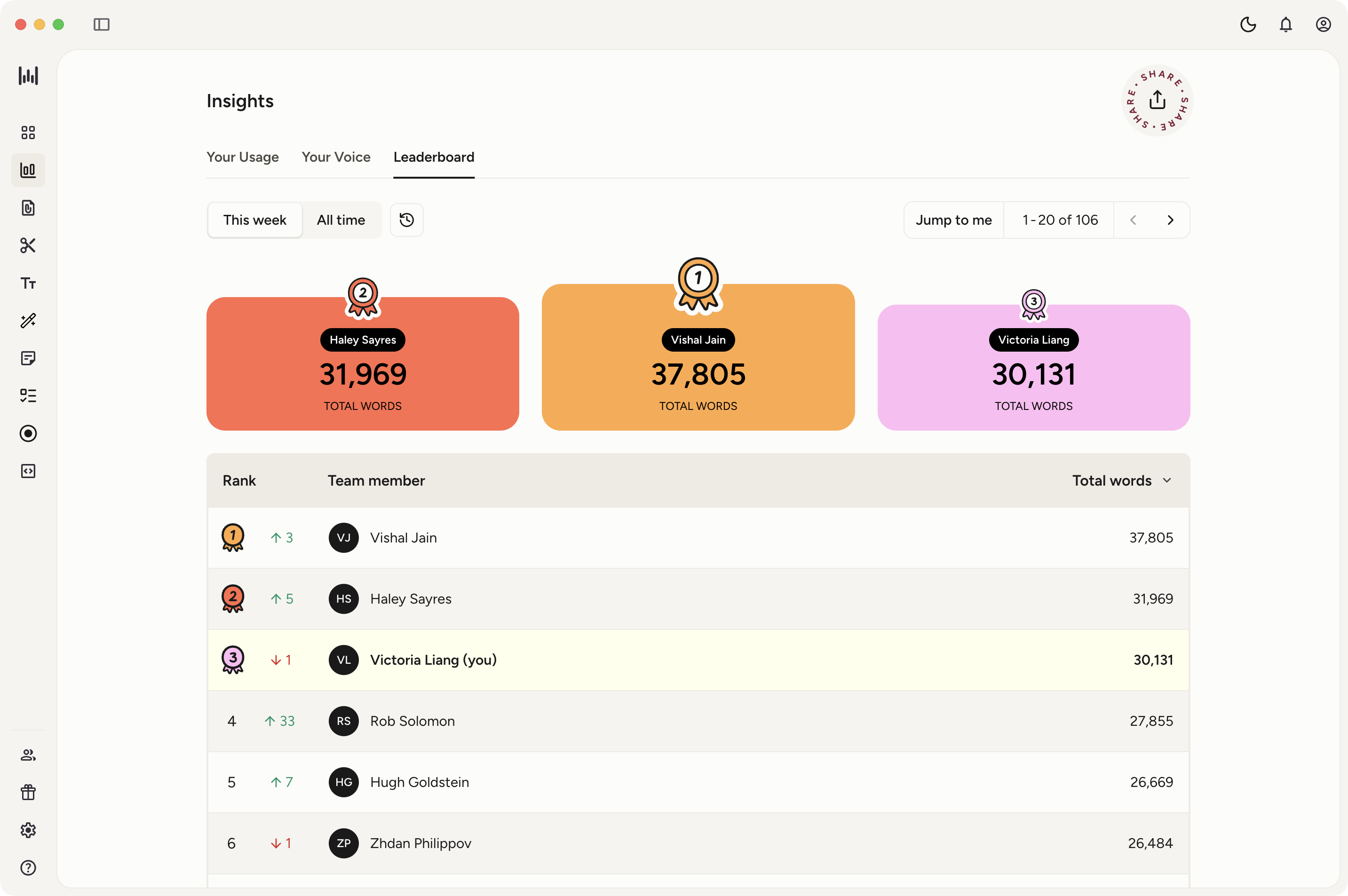
The leaderboard used to be an Enterprise-only feature. Now it's available to Pro teams too. See how you rank against your teammates, track who's been dictating the most, and share the standings with your group.
Find it under Wispr Flow > Insights > Leaderboard.
Teams: Invite multiple teammates at once
Adding multiple people to your team used to mean inviting one email at a time. We've streamlined it: admins can now add several email addresses and send all the invites at once. Everyone receives an invite email immediately, and you can track who has accepted from the Teams page in the Admin Portal.
Reliability and accuracy: where things stand
Reliability and accuracy are the core of what Flow does. Here's where things stand:
- Uptime: Dictation stayed up and running 99.9% of the time over the past few weeks.
- Speed: Dictation latency is down 30% since the start of the year, and it's still coming down.
- Accuracy: We tracked the biggest driver of recent accuracy issues to an Auto Cleanup setting that was too aggressive for some users. That's fixed now.
Put the Flow Bar wherever works best for you
The Flow Bar used to sit fixed at the bottom of your screen, which meant it could land right on top of something you needed next, like the send button in Gmail. Now you can drag it to the left or right edge instead, so it's out of the way of whatever you're actually doing. On Mac, that also means it's no longer sitting on top of your dock.
It remembers your position too, so it stays put instead of resetting every time you reopen Flow.
Just click and drag the Flow Bar to reposition it.
Canadian English
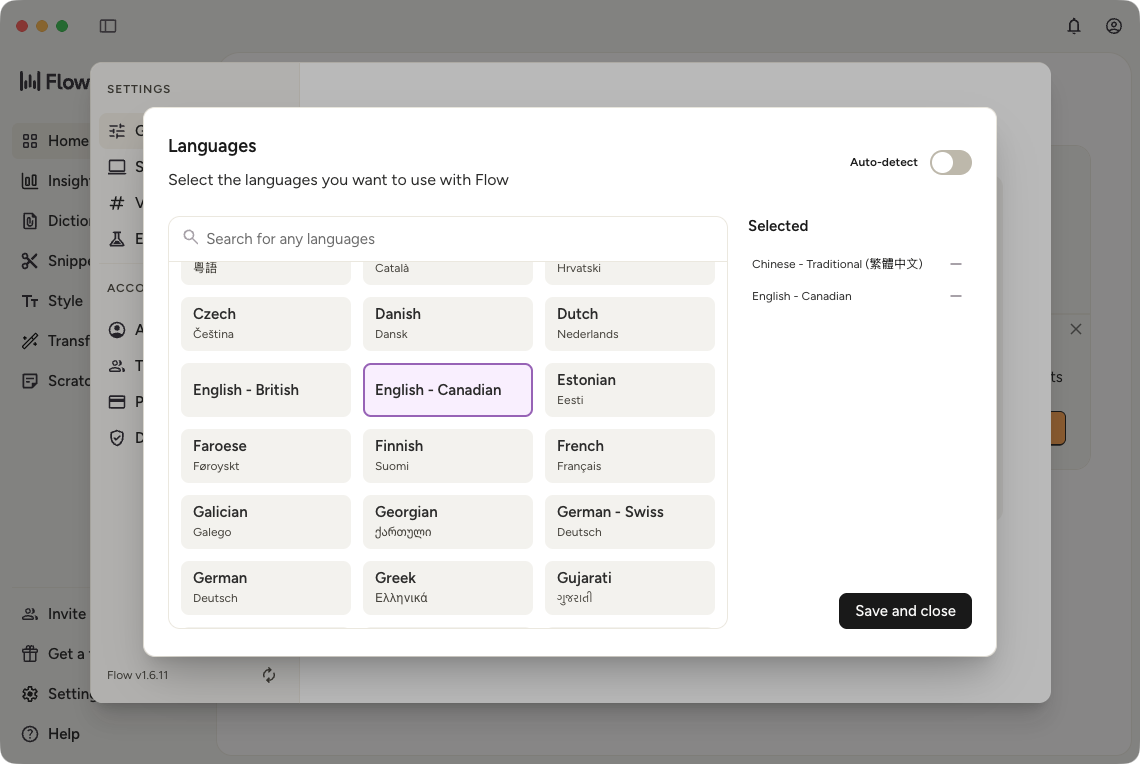
English-speaking users in Canada now get a friendly, one-time nudge to switch to Canadian English. A single tap swaps in the Canadian dictionary so spellings like "colour" and "centre" come out just right.
We shipped this on Canada Day. Seemed like the right day for it.
Find it: Go to Settings > General > Dictation Languages.
Reliability & Stability
We heard from Android users that things haven't felt as solid as they should, so the team spent the past few months tightening things up:
- Flow Bubble recovery: If the bubble disappears, it now recovers on its own, and you'll get a system notification if it needs a nudge.
- Accessibility permission recovery: If a device revokes Flow's accessibility permission in the background, Flow now catches that and recovers instead of silently breaking.
- Crash fixes: Fixed several crashes.
- Multi-account isolation: If you share a device with other accounts, your Flow settings and onboarding now stay isolated per account instead of carrying over between users.
- Flow Bubble UX cleanup: Fixed sizing glitches, visibility issues, errors that used to stick around, and snooze/shrink not working right.
- Xiaomi/OnePlus fixes: Resolved battery optimization and overlay problems specific to these devices.

Flow now switches back automatically for more apps
Auto-switchback automatically returns you to your host app the moment you finish dictating, so you're not stuck manually tapping back in. It now works across every supported iOS version, including the iOS 27 beta.
We've also added native switchback support for a long list of apps that didn't have it before, including Claude, ChatGPT, Gemini, Grok, Perplexity, Kin, LinkedIn, and many more messaging and productivity apps.
More consistent and accurate formatting
Over the past few months, some dictations had formatting issues: course corrections that didn't land, words swapped for ones you didn't say, punctuation or edits getting ignored, and quality that varied session to session. A portion of dictations were being handled by older models, one too conservative on course correction and one too aggressive about changing words.
Both are now fixed. Everyone is on the same current model, so quality is consistent every time you speak. You'll notice:
- Cleaner course correction
- Fewer changes to words you said
- Punctuation and corrections that do what you tell them to
To keep it from recurring, we've added A/B testing and expanded benchmarks so every new model is tested against real usage before it ships. If you hit a formatting issue, report the transcript from inside the app with a note on what went wrong. Those reports are what help the team improve Flow.
Let Flow pick the right microphone automatically
Rank your microphones once and Flow uses your top available one without you switching manually. Plug in a headset and Flow picks it up; unplug it mid-dictation and Flow falls back to your next-ranked mic without interrupting you.
Find it: Settings > General > Microphone
Keep dictating when you dock your laptop (clamshell mode)
Close your laptop lid and Flow switches to your highest-ranked external mic on its own instead of interrupting you with a notification, then returns to your built-in mic when you open it again. Reordering mics in settings now applies instantly, with no need to restart recording.
Find it: Settings > General > Microphone
A more reliable Wispr Flow
Rapid growth in our user base strained our infrastructure recently, and some users saw slower dictation, lower accuracy, or trouble signing in and using polish.
We've scaled up our infrastructure to keep pace with growth and isolated the most demanding work onto a dedicated system, so heavy usage in one area can't disrupt the rest. We've also tightened monitoring to catch and resolve issues faster. This work is ongoing.
On accuracy, we fixed several specific issues:
- Better language routing: UK English and Swiss German weren't always being sent to the right place, which hurt accuracy for those users. Both are now routed correctly.
- Cleaner audio handling: Audio compression wasn't fully working as intended, which could affect how well your speech was transcribed. It's now working the way it should.
- A higher bar for every model: We built a much stronger set of evaluations across all of our models, so we can catch accuracy regressions before they reach you.
Some of the recent drop in accuracy was a side effect of this infrastructure strain rather than the models themselves, and it improves as the stability work lands.
We're also testing a new round of model improvements to push accuracy further, and building toward personalized speech models that adapt to how you speak over time.
Updated data controls
We're introducing Cloud Sync, a new setting alongside Privacy Mode that gives you more granular control over how Flow handles your data.
Why we're making this change: To support upcoming features like personalized speech models, Flow needs to store your transcription data on our servers. Until now, Privacy Mode meant zero data retention: nothing stored, nothing trained on. That was the right default when Flow was purely a dictation tool, but it also meant we couldn't build features that depend on your history, like syncing notes across devices or learning how you speak to improve accuracy over time.
Rather than weaken Privacy Mode, we split it into two independent controls:
- Privacy Mode controls whether your data can be used for model training. This hasn't changed. With Privacy Mode on, none of your data is used to train or improve AI models, by us or any third party.
- Cloud Sync controls whether your transcription data (transcripts, audio, and dictation history) is stored on Wispr's servers. Turning Cloud Sync on unlocks cross-device sync for Wispr Scratchpad and enables future features.
What this means for existing users:
- If you had Privacy Mode on, nothing changes automatically. Privacy Mode remains on, and Cloud Sync stays off. This is identical to the previous level of privacy → zero data retention for all audio and transcript data.
- If you had Privacy Mode off: Nothing changes. Your settings carry forward as-is.
- When you're ready to try features that require Cloud Sync, or want to enable cross-device sync, Wispr will prompt you to turn it on. You're always in control.
Your dictionary, snippets, and custom prompts continue to sync across devices, regardless of your Cloud Sync setting. Wispr Scratchpad requires Cloud Sync to be enabled for cross-device sync.
For the full breakdown, see our updated Data Controls page.
Never Lose a Dictation Again
If you've ever started a dictation outside the keyboard and had a phone call, Siri, or the five-minute limit cut you off, you know the worst part was the silence: you had no idea whether your words were saved. Now Flow tells you. When something interrupts a dictation, Flow sends a notification with sound so you know your transcript made it to your history. Tap it and you'll jump straight to that transcript, already copied to your clipboard, with a one-tap copy button right on the row. If a dictation fails instead of finishing, you get a "Tap to retry" notification that kicks off an instant retry.
- Interrupted? You'll know: A gentle notification with sound confirms your transcript is saved whenever a call, Siri, or the time limit cuts a dictation short.
- One tap back to your words: Tapping the notification opens the transcript, auto-copies it, and highlights a copy button on the row.
- Failures retry themselves: A failed dictation sends a "Tap to retry" notification that triggers the retry for you. (Make sure Flow has notification permission so these can reach you.)
One-Tap Retry for Failed Transcripts
Failed transcripts in your history used to be easy to miss, and recovering one meant digging through a context menu. Now they're impossible to overlook: any failed transcript shows up in orange with a "Retry your X:XX transcript" label and a dedicated retry button. Tap the row or the button to retry it instantly. No more wondering whether a transcript was empty or guessing how to get it back.
Help Center: Retry failed transcriptions
Always-On Live Dictation Timer
The Dynamic Island and Lock Screen Live Activity now show a running timer for every dictation, not just the ones you start with the Action Button. Whether you kick things off from the keyboard or anywhere else, you'll always have a clear visual signal that Flow is listening, so you can speak with confidence without peeking at the screen or restarting unnecessarily.
Smarter, Faster Backspace
The keyboard's backspace now behaves like the iOS system keyboard. A single tap deletes one character on release, and holding it down speeds up from character-by-character to whole-word deletion after about two seconds, with natural pauses at punctuation. It works across most languages (including Chinese, Japanese, Korean, Hindi, Bengali, and more), so cleaning up a long passage no longer means grinding through one character at a time.
Reliability: where things stand
We know Flow hasn't been as reliable lately. Here's what's been happening, what we're doing about it, and how to stay informed.
What went wrong
We had two separate issues over the past two weeks:
- Last week: Outages affecting core dictation, caused by a combination of vendor failures and our own scaling issues
- This week: Backend instability that affected a different set of users
We're calling them out separately because if you experienced issues last week but not this week (or vice versa), that's why. Either way, both are being treated with the same urgency.
What we're doing about it
This is our top priority. That means:
- We’re reallocating engineering resources to focus on stability until this is resolved
- We're re-evaluating our current vendors and onboarding additional ones so a single provider failure doesn't take Flow down
- We're also working on accuracy improvements, including testing a rollback on a recent setting that may have had unintended effects and developing an upgraded speech recognition model
We built in some redundancy after the first round of issues, but the past week showed us that wasn't enough. We're going further.
Stay updated
You can subscribe to real-time incident notifications at statuspage.incident.io/wispr-flow. Current status is also always visible at wisprflow.ai/support.
See the Flow Hub in four new languages
Although most of the team has been heads down on stability, we also shipped Desktop localization.
This means you can now choose between English, German, Spanish. Italian, and Portugese and all of your settings, notifications, insights, and more will be updated to your preferred language automatically.
To change this preference, go to Settings > General > App language.
An Update on Wispr Flow Reliability
Flow has been less reliable than it should be over the past few weeks. Here's a transparent look at what went wrong and what's being done about it.
Outages: The issues stemmed from infrastructure changes made while scaling up capacity. The rollout moved faster than planned, and failover didn't hold up the way it should have. Redundancy is now in place so a single provider outage doesn't take Flow down, along with health monitoring and an on-call rotation to catch issues faster. This is the top priority across engineering and infrastructure right now.
Accuracy: The introduction of the auto-cleanup setting may have affected other settings as well. A rollback is actively being tested. An upgraded speech recognition model is also in progress, targeting both accuracy and latency. All users run on the same model, so any improvements reach everyone at once.
Longer term, better internal tooling is being built so issues like these get caught before they reach you.
Scratchpad: A notepad that lives on top of everything (Beta)
Scratchpad replaces Flow Notes on Desktop. It's a lightweight notepad you can pull up with a keyboard shortcut (Option + S on Mac) without leaving whatever app you're in. It floats on top of your screen like a sticky note.
On Desktop, it's a rich-text editor with tabs, version history, a notes sidebar, and image support. Your notes sync between Desktop and iPhone. (It is not yet available on Android.)
This is in beta. Note that there are occasional syncing issues between devices that we're actively fixing. If you previously used Flow Notes, your notes are still here under the new name.
Find it: Press Option + S on Mac, or click Scratchpad in the left sidebar of the Hub.
Help Center: Using the Scratchpad to Save and Edit Notes
Transforms: Rewrite any text with AI (Beta)
Transforms lets you highlight any text, press a shortcut, and have Flow rewrite it using AI. It works anywhere Flow works.
There are two built-in transforms to start: Polish cleans up your text for clarity and conciseness, and Prompt Engineer restructures what you dictated into a well-formatted AI prompt. You can also create your own custom transforms with any prompt you want.
You can run a transform on demand by highlighting text and pressing the shortcut. Or set one to run automatically after every dictation, so your text is polished before it's even pasted.
A note on how this is different from Auto Cleanup: Auto Cleanup applies to every dictation at the moment you dictate. Transforms give you the option to change text after the fact, on any text you select, with more specific control over what the rewrite does.
This is in beta. The core functionality is solid, but we're still working on discoverability and activation. Give it a try and let us know what you think.
Find it: Highlight text, then either hover over the Flow Bar and click the wand icon OR apply a keyboard shortcut. To modify your keyboard shortcuts and Transforms options, go to Transforms in the left sidebar of the Hub.
Help Center: How to Use Transforms
Dictate into AI coding terminals without your text getting hidden
If you use Claude Code or Codex in your terminal, longer dictations used to get collapsed into an unreadable "[Pasted N lines]" block. Now Flow automatically keeps your dictated text visible and editable, so you can review what you said before sending it. Learn more →
Check Flow's status anytime
You can now see whether Flow is experiencing any issues at statuspage.incident.io/wispr-flow. If dictation feels slow or something seems off, this page will tell you whether it's a Flow-wide issue or something on your end. You can subscribe to get notified automatically when incidents happen or resolve. We're also working on bringing status updates directly into the app in a future release.
Recover dictations after quitting
If you quit or restart Flow mid-dictation, your audio is now automatically saved. Reopen the app, go to History, and click Recover to finish processing it. No more lost thoughts from an accidental Cmd+Q.
Clearer microphone error messages
When Flow can't access your mic, you now get a specific notification telling you exactly what's wrong: mic unplugged, in use by another app, or blocked by system settings. Each one includes a suggested fix so you can get back to dictating fast. Learn more →
Sync your subscription instantly
If you upgraded to Pro on another device but Desktop still shows your old plan, there's now a sync button in Settings → Plans & Billing that refreshes your status in one click. No more contacting support.
IT Admin seats for Enterprise
Organizations can now add non-paid IT Admin seats to their plan. IT Admins can manage settings, billing, and usage in the Admin Portal without needing a full Flow license. Useful for IT teams that need to manage the rollout without being active Flow users themselves.
Smarter shake gesture.
Shake to un-snooze now only activates when Flow is actually snoozed. When you're not snoozed, the accelerometer is completely off, which saves battery and eliminates false triggers from scrolling or moving your phone around. Learn more →
Smarter back button navigation.
The system back button now behaves the way you'd expect: open drawers close cleanly, keyboards dismiss before navigation happens, and you always land back on Home with predictable behavior across every screen.
Scratchpad syncs with Desktop. Your Scratchpad notes now sync between Desktop and iPhone. On iPhone, however, it's a plain-text editor and is still named Notes. It will be renamed Scratchpad and include more functionality in future releases.
Insights: see how you use Flow
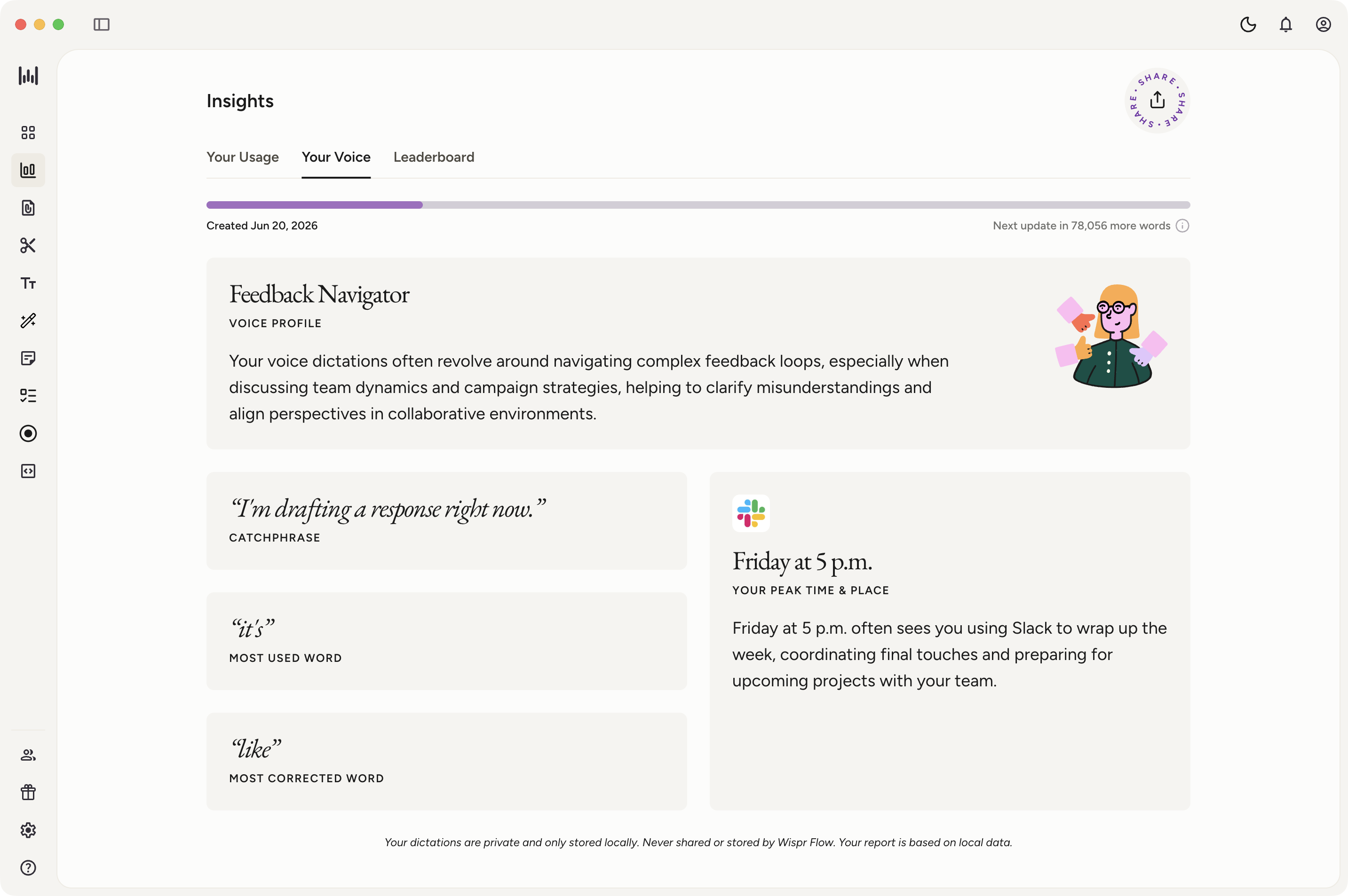
Flow now has an Insights tab with three views. Each tab generates cards that you can post on social accounts or share with your team.
This is a first version, and we plan to make it much more useful over time: think actionable tips, coaching on how you communicate, and deeper patterns. For now, here's what's there:
Your Usage shows your words per minute (and how you stack up against other Flow users), total words dictated, words cleaned up by Flow, smart replacements from your dictionary and snippets, a breakdown of which apps you use Flow in most, and a daily streak heatmap.

Your Voice generates a communication profile from your dictation patterns: your archetype, your catchphrase, your most corrected word, and when you're most active. Unlocks at 2,000 words and gets richer over time.
Leaderboard lets Enterprise teams see who's dictating most, with weekly and all-time views and a top three podium.
This is just the beginning for Insights. We want to hear what would make it most valuable to you. What stats would you actually act on? What would you want to learn about how you speak? Share your thoughts on our Reddit thread.
Find it: Click Insights in the left sidebar.
Auto Cleanup: choose how much Flow edits for you
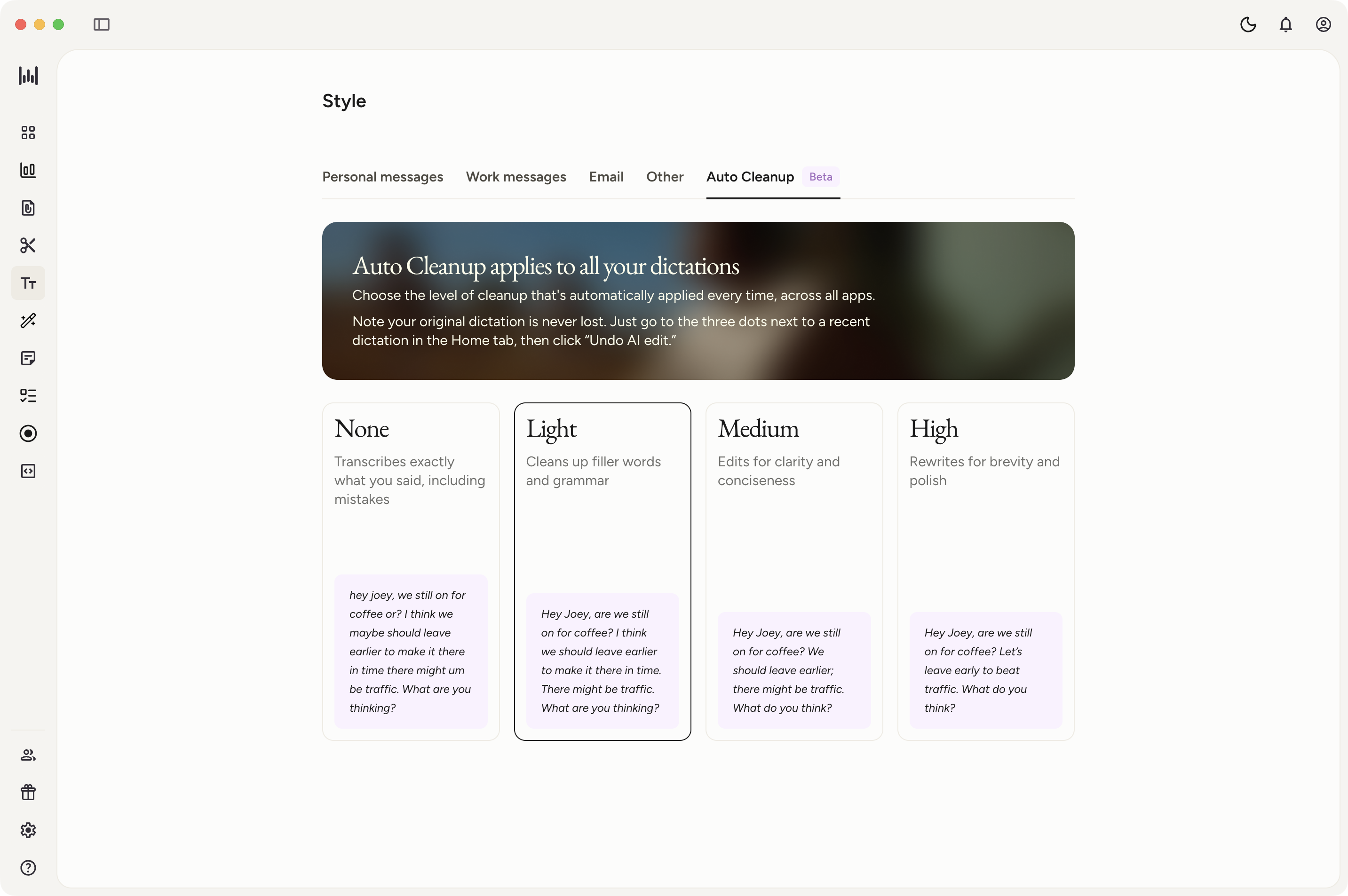
If you used Smart Formatting before, this its replacement in a new place with more control. Auto Cleanup now lives under the Style tab (not Settings), and instead of a simple on/off toggle, you can pick from four levels:
- None: transcribes exactly what you said, including mistakes
- Light: cleans up filler words and grammar
- Medium: edits for clarity and conciseness
- High: rewrites for brevity and polish
Your original dictation is never lost: hover over any transcript in your history, click the three dots, and select "Undo AI edit" to see the raw version. Redo it anytime.
We're still refining the UI and where exactly this lives in the product, so expect this to evolve. But if you previously wanted more or less cleanup than the old on/off toggle gave you, this should already be a big improvement.
Find it: Style tab in the sidebar → Auto Cleanup.
Help Center: How to Use Auto Cleanup (Beta)
Control how your transcripts are stored
New local data storage options let you choose to save transcripts normally, auto-delete them after 24 hours, or never store them on your device at all. Find it in Settings → Privacy.
Share an invite link to grow your team
Team admins can now generate a shareable link that lets new members join instantly, no manual approval needed. Find it on the Team page in Settings or the Admin Portal. Learn more.
Reliability improvements
"Start at login" on Windows now works reliably. We also improved text insertion reliability and fixed edge cases with notifications and dictation responsiveness.
Less bubble, more screen
The Flow bubble now auto-shrinks after 5 seconds of inactivity. Choose between a compact icon or a tiny dot, and it even auto-minimizes in search fields so it's never in the way. Tap it anytime to restore and start dictating. Find the setting under Settings → Bubble Size.
Cleaner notification tray
We removed the persistent foreground notification that was cluttering your notifications. Flow still runs reliably in the background — you just won't see the extra notification anymore. Learn more.
Copy button after dictation
A quick copy-to-clipboard button now appears next to the bubble after each dictation. Tap it to grab your transcribed text, or let it auto-dismiss after 10 seconds. Learn more →
Adjustable bubble opacity
If the bubble feels visually distracting over certain apps, you can now dial it back. A new opacity slider in Settings lets you set it anywhere from 20% to 100%.
Reliability improvements
The Flow bubble is more responsive when you tap into text fields, the service recovers automatically if your device's battery manager stops it, and we're now fully compatible with Android 16.
Quick Dictation to Notes shortcut
You can now assign a built-in "Quick Dictation to Notes" shortcut to your Action Button, no iCloud workaround needed. Press the button, dictate, and your words are saved directly to Flow Notes, even when you stop from the Dynamic Island. Find it in Settings → Action Button → search for Wispr Flow.
Help Center: Set up Action Button for Flow on iPhone
Language Picker in the Flow Bar
If you use Flow in more than one language, manually selecting the language you’re dictating in yields the best results but switching languages has been a pain. The new language picker lives right in the Flow Bar, so switching languages is one click away.
Make sure multiple languages are selected in Settings, then hover over the Flow bar to see the different language options pop up.
[Help Center: Use Flow with Multiple Languages]
20-Minute Dictations
Dictation sessions now go up to 20 minutes, 4x the previous limit. Whether you're drafting a long email, recording meeting notes, or thinking through an essay out loud, Flow will keep up with you the entire time. You'll get a heads-up at 19 minutes so you can wrap up naturally.
[Help Center: Longer dictation sessions]
Mouse Flow: Dictate With Your Mouse
You can now bind any non-primary mouse button (anything besides left and right click) to trigger dictation. If you have an external mouse with extra buttons, you can set one up as a push-to-talk or a push-on/push-off shortcut, so you never have to take your hands off the mouse to start dictating.
Here's what's included:
- Core functionality: Bind any non-primary mouse button to start and stop dictation, right from Settings > Shortcuts.
- Send with your mouse too: You can also bind a mouse button to trigger "Enter," so you can dictate and send messages entirely from your mouse.
If you dictate while an external mouse with extra buttons is connected, Flow will let you know Mouse Flow is available and talk you through a guided walkthrough.
[Help Center: Set up Mouse Flow for faster dictation workflows]
Dictionary Upgrades
As custom dictionaries grow, it gets harder to find and manage the words that matter most. This month we added three improvements:
- Star important words: Pin your most critical terms so Flow prioritizes them during transcription.
- Usage-based ranking: Dictionary entries now sort by how often you use them, so your most relevant words are always at the top.
- Smarter auto-add: Auto-add now properly filters apostrophe variants, preventing duplicate entries from cluttering your list.
Dictionary also launched on Android this month (more on that below).
[Help Center: Teach Flow Your Words with the Dictionary]
Shortcuts & Controls
A few updates for users who like to customize how Flow responds to their input:
- Customizable cancel shortcut: The Escape key for cancelling dictation is now fully rebindable. If you use Vim, Terminal, or certain IDEs where Escape already does something, you can set a different key. Find it in Settings > Shortcuts.
- Inline retry for dismissed or failed transcripts: If you accidentally cancelled a dictation by hitting
Escor it errored out, you can now retry it directly from your Hub history instead of re-dictating from scratch. This was one of our most common support requests, so we wanted to make recovery as easy as possible. - Rebind Enter: You can now assign Enter to a different key, freeing it up for use as a voice command or keeping it for sending messages while you use another key for dictation control.
[Help Center: Supported Keyboard Hotkey Shortcuts]
Smarter Notifications
We overhauled how Flow communicates with you. The goal: less noise, more control, and better feedback when you interact with notifications.
- Redesigned notification UI: Updated visuals and smoother animations make notifications feel less intrusive and more informative at a glance.
- Granular mute controls: You can now mute specific notification categories independently (feature tips, formatting reminders, milestones, and more) instead of toggling all notifications on or off. Find it in Settings > Notifications.
- Click confirmation: Action buttons on notifications now show a checkmark when you tap them, so you always know your click registered. Previously it could feel unresponsive, and you'd wonder if the action actually went through.

[Help Center: Customize Notification Preferences]
More Desktop Updates
- Browser sign-in: The "Sign in via browser" option is now available to everyone. This is especially useful if you use SSO, corporate firewalls, or have a complex auth setup where in-app login doesn't work reliably. [Help Center: Login Issues with Wispr Flow]
- Clamshell mode mic warning: If you use your MacBook with the lid closed at an external display, Flow now warns you when you're still using the built-in microphone, which gets muffled by the closed lid. If you've ever had rough transcriptions at your desk setup without knowing why, this might have been the culprit. Connect an external mic or headphones to get back to full quality. [Help Center: Troubleshooting Mic Issues]
- Additional app/website support in Styles: Flow now recognizes Instagram, Discord, and Signal as personal messaging apps and LinkedIn as a work messaging app, applying the associated conversational writing style when you dictate in them. [Help Center: How to setup Flow Styles]
Security & Privacy
- HIPAA BAA access: Enterprise users with HIPAA Business Associate Agreements can now view signing details and download the agreement as a PDF directly from Settings > Account. No more digging through email to find your compliance paperwork. [Help Center: HIPAA Compliance & Healthcare Use]
Desktop Stability & Reliability
We're continuously fixing the small things that add up to a smoother experience. This month's improvements include: fewer duplicate notification sounds, better recovery after your machine wakes from sleep, improved responsiveness when starting and stopping dictation, and several UI fixes on Windows. If Flow has felt more solid lately, this is why.
Custom Dictionary
Android users can now teach Flow their vocabulary. If Flow keeps getting your name, your company's name, or industry jargon wrong, open Dictionary in Settings and add the words you need. Flow will prioritize them during transcription going forward. Full add, edit, delete, and search support, with a polished UI that matches the desktop experience.
[Help Center: Teach Flow Your Words with the Dictionary]
Context-Aware Dictation
Flow on Android now reads the surrounding text in your input field before transcribing. That means it can continue your sentences naturally, match the tone of what you've already typed, and avoid repeating words. If you start typing a thought and switch to dictation halfway through, Flow picks up right where you left off. This is the same intelligence that powers Flow on desktop, and it's a big step toward full platform parity.
[Help Center Context Awareness]
Banking App Privacy Protection (50+ Apps Globally)
Flow now automatically pauses in 50+ banking and financial apps across the US, UK, Europe, India, Asia, Latin America, and South Africa. No setup needed: if you're in a recognized financial app, dictation pauses automatically. This was a big gap for international users whose local banking apps weren't covered previously. Privacy in financial apps is non-negotiable.
[Help Center: Banking App Detection Support]
Secure Sign-Out
Signing out now shows a confirmation dialog and securely deletes local transcripts, protecting your data on shared or managed devices.
[Help Center: Switching Accounts on Android]
Quality-of-Life Improvements
We've been listening to what trips people up on Android, and this month we tackled a bunch of the most common friction points:
- Tap transcript to copy: Tap any transcript card in your history to copy the text to your clipboard instantly. Useful when you want to paste a transcription into a different app without extra steps. [Help Center: Starting Your First Dictation on Android]
- "Copy Last" in notification shade: The persistent notification now includes a "Copy Last" button, so you can grab your most recent transcription without even opening the app. [Help Center: Customize Notification Preferences]
- Keep screen on during dictation: Your screen no longer sleeps mid-sentence during longer dictation sessions. If you've ever been halfway through a thought and had your screen go dark, this one's for you. [Help Center: Android Troubleshooting]
- Dictation session time management: You'll now see a gentle warning as you approach the 5-minute session limit, and the session auto-saves when it reaches the cap. Start a new session to keep going. This prevents accidental long-running sessions from draining your battery or producing unwieldy transcripts. [Help Center: Dictation Session Time Limits on Android]
- Retry failed transcriptions: If a transcription fails because of connectivity issues or a server error, the audio is now preserved in your history. You can retry it anytime without re-dictating. You'll never lose a recording again.
- Service not running warning: Android sometimes kills background services without telling you. If the accessibility service stops, the home screen now shows a clear warning card with a one-tap fix to re-enable it, so you're never stuck wondering why dictation isn't working. [Help Center: Android Troubleshooting]
Android Stability & Reliability
We squashed a lot of bugs this month. Fixes include: crashes on Samsung devices with disabled default browsers, text landing in the wrong input field when switching between fields quickly, the waveform animation not responding at the start of dictation, and several accessibility framework issues that were causing unexpected behavior. If dictation on Android feels more solid this month, these are why.
[Help Center: Android Troubleshooting]
Adapting to iOS 26.4
Apple changed how third-party keyboards work in iOS 26.4, and it affected two core parts of the Flow experience. We moved fast to minimize the friction and give you new ways to control your writing style.
What changed (these are Apple platform changes, not something we control):
- Quick swipe to start: In many apps, tapping "Start Flow" used to briefly open the Flow app and automatically return you to what you were doing. After iOS 26.4, you'll need to swipe back to your app manually. Voice-to-text still works exactly as before once you're back in your app.
- Styles no longer auto-adjust by app: Flow adjusted formatting depending on which app you were typing in (more formal in email, more casual in messaging apps). iOS 26.4 removed that ability. Your default style now applies everywhere.
What we shipped to help:
- Default style settings in the app: Set your preferred writing style in the Style tab, and it applies across all apps. You can update it anytime.
- Quick Style Switcher on the keyboard: A new style pill appears above the keyboard, letting you tap to temporarily switch your style for any conversation without leaving the app you're in. The override resets back to the default style after 15 minutes of inactivity.
- Both features are available for users with English, British English, or auto-detect language settings.
Desktop and Android are unaffected. You'll continue to get the full seamless experience there.
[Help Center: Adapting to iOS 26.4]