

Top 12 accessibility features for Android (Updated January 2026)

TL;DR
Android's accessibility features solve problems for everyone, not just users with disabilities. This guide covers 12 features you'll actually use: Live Caption for subtitles on any audio, magnification for small text, Select to Speak for reading articles aloud, and Sound Amplifier for quiet audio. You'll also learn about color correction, one-handed mode, hearing aid support, timing controls, text and display adjustments, Switch Access, and shortcuts that make these features easy to access. Plus, discover how voice input with Wispr Flow takes mobile writing to the next level, making it faster and easier regardless of typing ability. These aren't specialized accommodations. They're practical tools that make your phone work better.
Introduction
Most people assume accessibility features are only for users with disabilities. That's a narrow view. These tools solve universal problems: watching videos in noisy coffee shops, reading text that's too small, controlling your phone when your hands are full, understanding unclear audio.
Good technology works for more people in more situations. Curb cuts help wheelchair users, but they also help anyone with a stroller, cart, or luggage. Captions help deaf viewers, but they also help everyone in noisy bars or quiet libraries. Android's accessibility features follow this principle.
This article covers 12 accessibility features worth knowing about. They're not obscure settings buried in menus. They're practical solutions to problems you encounter regularly. Some help in specific situations, others improve your daily experience in ways you might not expect.
1. Live Caption
Live Caption provides real-time subtitles for any audio on your device: videos, podcasts, voice messages, phone calls, apps. The processing happens on your device, so it works offline and keeps your audio private.
Press either volume button and tap the Live Caption icon. A caption box appears, transcribing spoken words in real time. You can drag it anywhere or double-tap to expand the text.
This helps in noisy environments like airports or gyms. It helps in quiet environments like libraries or late at night. It makes accented speech easier to understand and clarifies videos with poor audio quality.
Reading while listening also improves comprehension and retention. For educational content or important calls, captions help you process information better.
The accuracy is good for clear speech, though it struggles with heavy accents, multiple speakers, or technical jargon. For most situations, it works well enough.
2. Magnification
Reading small text is frustrating. Android's magnification lets you zoom in on any part of your screen, whether the app supports zooming or not.
Enable it in Settings > Accessibility > Magnification. Choose triple-tap anywhere to zoom, or tap and hold with two fingers, then drag. You can magnify up to 8x normal size.
Use it for terms and conditions, photo details, map labels, or fine print in documents. It makes your phone more comfortable to use as eyesight changes.
Window magnification mode shows a zoomed portion while keeping the rest of the screen normal size. This helps when you need both context and detail.
3. Select to Speak
Select to Speak reads any text on your screen aloud. Unlike full screen readers, it only reads what you choose.
Enable it in Settings > Accessibility > Select to Speak. A floating button appears. Tap it, then tap any text to hear it read aloud. The text highlights as it's spoken. You can pause, adjust speed, or skip through content.
This helps when your eyes are tired from screen time. Listen to long emails or articles while resting your eyes. Follow along while walking. Catch typos in your writing by hearing it read back.
Speed is adjustable from slow (for difficult content or language learning) to fast (for quickly processing long documents). Voice quality has improved significantly in recent Android versions.
4. Sound Amplifier
Sound Amplifier boosts quiet sounds through your headphones, making faint audio clearer. Originally designed for users with hearing loss, it helps whenever you're listening to quiet audio or trying to hear in noisy environments.
Download Sound Amplifier from the Play Store and enable it in Settings > Accessibility > Sound Amplifier. Connect headphones (works best with wired), then activate it. It boosts quiet sounds while filtering background noise.
This solves inconsistent audio levels in videos, podcasts with poor audio engineering, or movies where dialogue is much quieter than music. Instead of constantly adjusting volume, Sound Amplifier brings quiet sounds up while keeping loud sounds from being overwhelming.
In noisy environments, it acts like advanced noise cancellation. Use it in coffee shops, airplanes, or offices to focus on your audio content.
Fine-tune bass and treble for different content. Set minimum and maximum volume levels. Enable noise reduction to filter background sounds.
5. Color correction and inversion
Color correction adjusts how colors display, originally designed for users with color vision deficiencies. But these adjustments help anyone who finds certain color combinations hard to distinguish.
Enable it in Settings > Accessibility > Color correction. Choose from deuteranomaly, protanomaly, and tritanomaly corrections, or grayscale mode. Each mode adjusts colors to make distinctions clearer.
Some apps use color combinations that are hard to distinguish in certain lighting. Graphs or data visualizations sometimes use colors that blend together. Color correction makes these distinctions clearer and reduces eye strain.
Color inversion (Settings > Accessibility > Color inversion) reverses colors across your system. This creates a dark mode effect even in apps that don't support dark themes.
High contrast text (Settings > Accessibility > Text and display > High contrast text) makes text stand out more against backgrounds. This improves readability in bright sunlight.
6. One-handed mode
Modern Android phones have large screens, making one-handed operation nearly impossible for most people. One-handed mode shrinks the display content toward the bottom of your screen, bringing everything within thumb reach.
Enable it in Settings > System > Gestures > One-handed mode. Swipe down on the gesture bar to trigger it. Your interface shrinks to about 70% of screen size, positioned at the bottom.
This helps when holding a subway pole, carrying groceries, holding a child, or just relaxing on the couch. The shrunken screen works normally, just smaller and repositioned. Swipe up or tap outside to return to normal.
7. Hearing aid compatibility
Android supports direct streaming to compatible hearing aids via Bluetooth. Phone calls, music, videos, and system sounds route directly to hearing aids, bypassing your phone's speaker.
Settings are in Settings > Accessibility > Hearing aids. Even without hearing aids, audio balance and mono audio settings are useful.
Audio balance adjusts left-right balance if one earbud is quieter or you have asymmetric hearing. Mono audio combines stereo channels into a single channel played through both ears, ensuring you don't miss audio panned to one channel.
Live Transcribe transcribes speech in real-time conversations, not just media. Enable it in Settings > Accessibility > Live Transcribe. Point your phone at someone speaking and read a real-time transcript.
Flash notifications make your camera flash blink for notifications. This visual alert ensures you never miss notifications when your phone is silent or you can't hear audio alerts.
8. Switch Access
Switch Access enables phone control using external switches, buttons, or facial gestures. While designed for users with severe mobility limitations, it demonstrates that touchscreen interaction isn't the only way to use your phone.
It's in Settings > Accessibility > Switch Access. Navigate by scanning through options and selecting with assigned switches. Switches can be external hardware, keyboard keys, or on-screen buttons.
Most users won't use this as their primary method, but understanding it opens thinking about alternative interaction models. Some users adapt it for custom game controls or hands-free music control during performances.
9. Timing controls
Timing controls adjust how long you need to press buttons, how long notifications stay visible, and how quickly you need to respond to prompts.
Touch and hold delay (Settings > Accessibility > Timing controls > Touch and hold delay) adjusts how long you must press before actions trigger. "Medium" or "Long" prevents accidental triggers when steadying your finger.
Time to take action extends how long messages stay on screen before automatically dismissing. This gives you more time to read and respond.
These adjustments make phone interactions less pressured. You're not racing against disappearing notifications or accidentally triggering actions from imprecise touches.
10. Text and display adjustments
Text and display settings offer comprehensive control over how content appears.
Font size (Settings > Display > Font size) scales text throughout the system while keeping other interface elements the same size. Display size (Settings > Display > Display size) scales everything proportionally.
Bold text makes text thicker and more prominent. Combined with high contrast text, this creates highly readable displays that work well in bright sunlight.
Dark theme reduces eye strain in low light and saves battery on OLED screens. Extra dim (Settings > Accessibility > Extra dim) reduces brightness below the normal minimum for very dark environments.
11. Accessibility shortcuts
Accessibility shortcuts provide quick access without navigating through settings menus. This makes features practical for occasional use.
The accessibility button (Settings > Accessibility > Accessibility button) adds a floating button that opens a menu of features. Customize which features appear so your most-used tools are one tap away.
Volume key shortcut (Settings > Accessibility > Volume key shortcut) lets you hold both volume keys for three seconds to quickly start a service. Configure which service it activates.
These shortcuts transform features from permanent settings into contextual tools. Enable Live Caption when you enter a noisy environment, magnification when you encounter small text, or Select to Speak when your eyes are tired.
Bonus: Voice-to-text that actually works
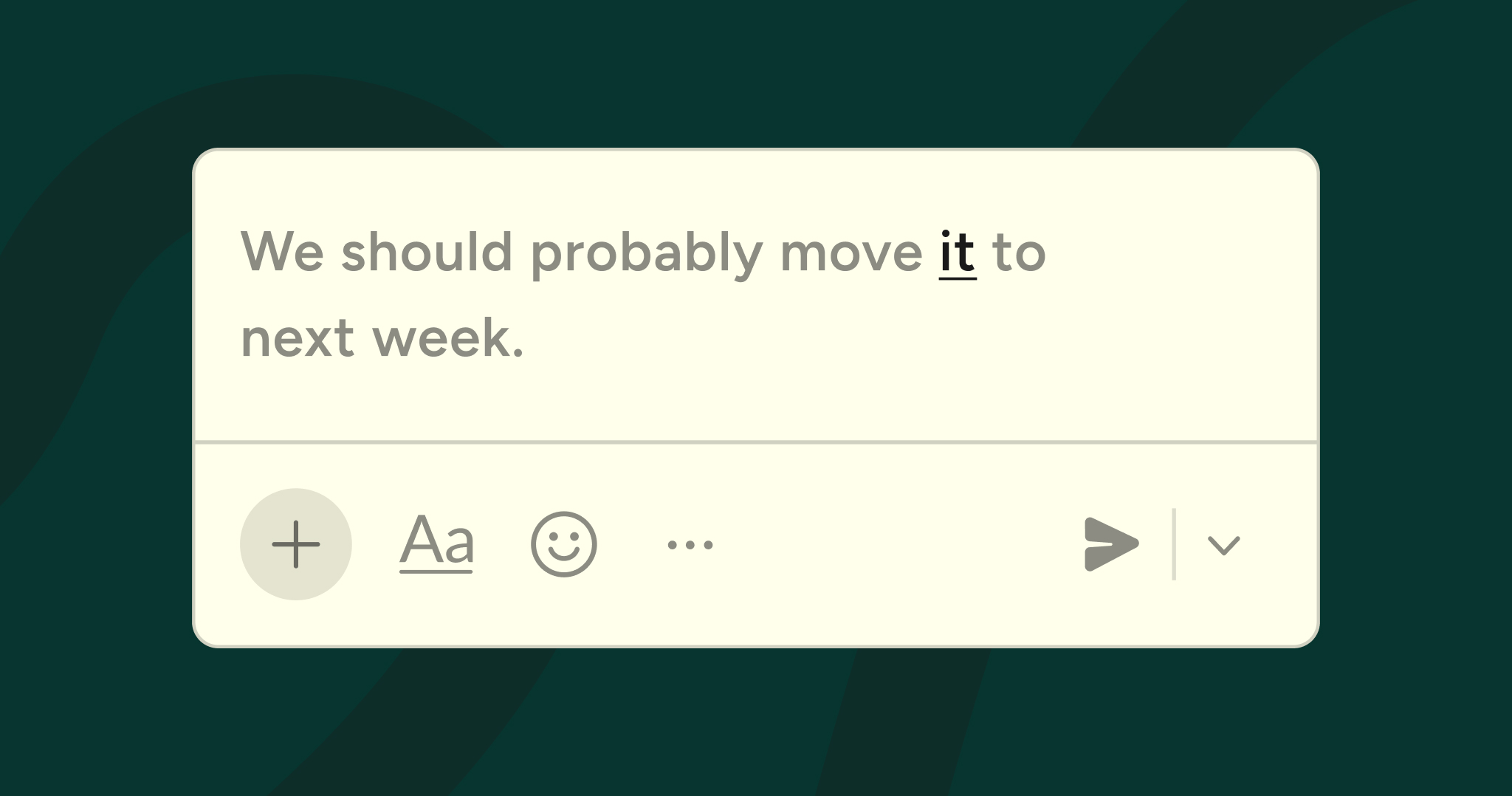
Android's built-in voice typing provides basic dictation. It writes what you say, including filler words, grammatical errors, and awkward phrasing. For users who need voice input due to mobility limitations or other needs, this often requires significant editing, which undermines the benefit.
Wispr Flow is different. It's an AI writing partner that automatically edits your speech into polished text. For users with mobility limitations who find typing difficult or impossible, this is genuinely useful. For users with dyslexia or other learning differences that make writing challenging, it removes mechanical barriers. For anyone who wants faster text input, it eliminates the typing bottleneck.
Flow's 4x speed advantage over typing means anyone can communicate faster. This matters for users who need extra time to process information, users who fatigue quickly from fine motor tasks, or users who simply have a lot to say. The AI editing ensures professional-quality output regardless of how you naturally speak.
The snippet library has particular value for accessibility. Users who communicate similar messages repeatedly can create voice shortcuts that eliminate repetitive typing. This is essential for users with fatigue conditions, repetitive strain injuries, or limited motor control. Say "morning greeting" and your full personalized greeting appears. Say "meeting notes template" and your structured format is ready.
The personal vocabulary learning is important. Users with unique communication needs, specialized terminology, or names that standard voice typing consistently misspells finally get accurate transcription. Flow learns your specific language use.
Flow is currently available on iOS, Mac, Windows, and Android. For Android users who would benefit from truly intelligent voice input, whether due to disability, preference, or simply wanting better tools, download Flow for Android to get started.
Conclusion
Android's accessibility features solve real problems that all users encounter. Live Caption helps in noisy or quiet environments. Magnification solves small text problems. Select to Speak reduces eye strain. Sound Amplifier clarifies quiet audio. Wispr Flow for Android will bring AI-powered voice input that automatically polishes your speech into clear text.
These aren't specialized accommodations. They're practical tools that improve usability for everyone. Use whichever features make your phone more useful or comfortable. There's no requirement to justify using accessibility tools.
Good design serves everyone. Android's accessibility features demonstrate this principle. They accommodate specific needs while providing valuable functionality for all users. Download Wispr Flow for Android to add truly intelligent voice productivity to your phone. Your Android phone is more capable than you probably realize. Accessibility features are a significant part of that capability.
Frequently asked questions (FAQs)
1. Will using accessibility features slow down my phone or drain battery?
Most features have minimal impact. Live Caption uses on-device processing and are well-optimized. Magnification and color correction are visual adjustments with negligible battery impact. Select to Speak only activates when you use it. Sound Amplifier only runs when connected to headphones. Features designed to run constantly (like TalkBack or Switch Access) consume more resources, but occasional use has minimal battery impact.
2. Can I use accessibility features even if I don't have a disability?
Yes. Accessibility features are available to all users. They're tools that solve common problems: watching videos in noise, reading small text, operating your phone hands-free, hearing quiet audio. Use whichever features make your phone more useful. There's no requirement to prove need.
3. Will accessibility features make my phone look different to others?
Most features are invisible to observers. Live Caption shows a caption box only you can see. Color correction changes what you see but not what others see. Magnification is temporary and easily toggled. Bold text and larger fonts are visible but subtle. Only features like TalkBack (which speaks everything aloud) are obviously noticeable.
4. How is Wispr Flow different from Android's built-in voice typing for accessibility?
Android's built-in voice typing provides direct transcription. It attempts to write exactly what you say, including filler words and errors. For users who need voice input due to mobility limitations or other needs, this often requires significant editing afterward. Flow uses AI to automatically edit your speech into polished text, removing fillers, fixing grammar, and structuring thoughts clearly. The output is immediately usable without editing, making voice input truly accessible for communication, not just rough drafting.
5. Can I customize which accessibility features appear in quick access shortcuts?
Yes. In Settings > Accessibility > Accessibility button, customize which features appear in the menu. For the volume key shortcut (Settings > Accessibility > Volume key shortcut), choose which single feature activates when you hold both volume keys. Customize these shortcuts to include features you actually use.
6. Are accessibility features available on all Android phones?
Core features like TalkBack, magnification, color correction, and font adjustments are part of Android itself and available on all modern devices. Features like Live Caption are Google features available on phones running Android 10 or newer with Google services. Some manufacturer-specific features (like Samsung's accessibility suite) are only on specific brands. The vast majority work across all Android phones.



.jpg)