

10 Android features you're not using (but should be)

TL;DR
Your Android phone is a powerhouse of features, but most of us only use a fraction of its capabilities. This post unveils 10 hidden gems that can revolutionize your productivity, from advanced multitasking with Split-Screen and Fast App Switching to accessibility boosters like Live Caption and One-Handed Mode. We'll also explore how to recover lost alerts with Notification History, create custom shortcuts with App Shortcuts and Quick Tap, and even speed up your device with Developer Options. Plus, discover how a dedicated voice-to-text app like Wispr Flow can take your efficiency to the next level, making writing 4x faster than typing. Dive in to unlock your Android's full potential.
Introduction
In the palm of your hand lies a device brimming with untapped potential. Your Android smartphone is more than just a tool for calls, texts, and social media; it's a sophisticated piece of technology with a deep well of features designed to make your life easier, more efficient, and more connected. Yet, most users only ever skim the surface, leaving a treasure trove of powerful functionalities untouched. Over the years, Android has evolved into a mature and highly customizable operating system, with each new version introducing subtle yet significant enhancements that often go unnoticed by the average user.
From seamless multitasking to powerful accessibility tools, these hidden features can transform how you interact with your device, turning it from a simple communication tool into a true productivity partner. By taking a few moments to explore what lies beneath the default settings, you can unlock new workflows, save precious time, and tailor your phone to your exact needs. This article will guide you through 10 of the most impactful Android features you're probably not using, but absolutely should be. Prepare to see your smartphone in a whole new light.
1. Fast App Switching: The Alt-Tab for your phone
Remember the classic Alt-Tab shortcut on your computer that lets you instantly cycle through open applications? Android has its own version, and it's a game-changer for multitasking. Instead of tapping the overview button and scrolling through a carousel of recent apps, Fast App Switching allows you to jump between your two most recently used apps with a simple gesture. This feature, first introduced in Android 7, has been refined over the years and is now more intuitive than ever.
If you're using Android's modern gesture navigation, simply swipe right on the thin navigation bar at the bottom of your screen to instantly switch to your previous app. Swipe right again to go back another step in your history, or swipe left to move forward. It's an incredibly fluid and natural way to move between, for example, a messaging conversation and a web browser, or a document and your email. For those still using the traditional three-button navigation, a quick double-tap on the square overview button achieves the same result, zapping you between your last two apps. Mastering this simple gesture can save you countless taps and seconds throughout the day, making your multitasking efforts feel truly seamless.
2. App Shortcuts: Your direct line to in-app actions
Imagine being able to compose a new email, start a new document, or get directions home without even opening an app first. That's the power of App Shortcuts, a feature that provides direct links to specific actions within your applications. While incredibly useful, they remain one of Android's best-kept secrets because they are hidden behind a long-press gesture.
To access them, simply press and hold any app's icon on your home screen or in your app drawer. A small menu will appear with a list of available actions. For example, long-pressing the Google Drive icon might give you options to search your files, upload a new file, or scan a document. Long-pressing your messaging app could let you jump directly into your most recent conversations. The best part? You can drag any of these shortcuts out of the menu and place them on your home screen as their own individual icons, giving you one-tap access to the actions you use most.
3. Live Caption: Real-time subtitles for everything
Have you ever been in a noisy environment or a quiet library and wanted to watch a video without disturbing anyone? Live Caption is your solution. This remarkable accessibility feature, introduced in Android 10, provides real-time captions for any audio playing on your device, whether it's a video on social media, a podcast, or even a voice message. It works entirely on-device, meaning your audio data stays private, and it functions even without a Wi-Fi or data connection.
To activate it, simply press one of your volume buttons and tap the small Live Caption icon that appears in the volume slider. Instantly, a black box will appear on your screen, transcribing every spoken word. You can drag this box anywhere on the screen or double-tap it to expand the text. It's not only a crucial tool for the hard of hearing but also a convenience for anyone who wants to consume media discreetly or better comprehend accented speech.
4. Share Menu Customization: Pin your favorites
The Android share menu is a powerful tool for sending content between apps, but it can often become cluttered with options you rarely use. Since Android 11, you've had the power to take control of this menu by pinning your most-used sharing targets to the top. This small customization can save you a surprising amount of time and frustration by eliminating the need to hunt for your favorite apps every time you want to share something.
The next time you open the share sheet, simply press and hold on the icon of an app you frequently share to, such as your primary messaging app or a note-taking service. A pop-up will give you the option to "Pin" it. Once pinned, that app will appear in a dedicated row at the very top of your share menu, ensuring it's always just a single tap away. You can pin up to four apps, creating a personalized, efficient sharing workflow that's tailored to your habits.
5. Split-Screen Multitasking: Two apps, one screen
While Fast App Switching is great for moving between apps, Split-Screen mode is the ultimate tool for using two apps simultaneously. This feature divides your screen in half, allowing you to, for instance, watch a YouTube tutorial while taking notes, or keep a Slack conversation open while referencing a document in Google Drive. It's an essential feature for productivity on the go.
To activate it, open your recent apps view (by swiping up from the bottom of the screen and holding), then tap the icon at the top of the app card you want to use. Select "Split screen" from the menu, and that app will snap to the top half of your screen. You can then choose another app from your recent apps or home screen to occupy the bottom half. You can even drag the divider to resize the windows. Combined with Picture-in-Picture mode, where a video can float in a small window over your apps, you can effectively have three applications running at once.
6. One-Handed Mode: Taming the big screen
As smartphone screens have grown larger, reaching the top of the display with one thumb has become a physical challenge for many. Android's One-Handed Mode is the elegant solution to this problem. When enabled, a simple gesture shrinks the entire screen content down toward the bottom, bringing everything within easy reach of your thumb.
You can typically enable this feature in your phone's settings under "System" or "Gestures." Once activated, you can trigger it by swiping down on the gesture navigation bar at the bottom of your screen. The entire interface will scale down, allowing you to comfortably navigate menus, pull down the notification shade, and tap buttons at the top of the screen without needing a second hand. It's a must-have feature for anyone with a large phone who values one-handed usability.
7. Notification History: Never lose an alert again
We've all done it: accidentally swiped away a notification before we had a chance to properly read it. Was it an important email? A message from a friend? A critical system alert? With Notification History, you no longer have to wonder. This feature keeps a log of every notification that has appeared on your device in the last 24 hours, even those you've dismissed.
This feature is usually off by default, so you'll need to enable it by going to Settings > Notifications > Notification history. Once it's on, you can return to this screen anytime to see a chronological list of your recent alerts. Tapping on an item in the history will take you directly to the corresponding app, just as if you had tapped the original notification. It's a simple but incredibly powerful safety net for your digital life.
8. Quick Tap / Back-Tap Actions: A shortcut on the back of your phone
One of the most futuristic-feeling features on modern Android phones is the ability to trigger actions by simply tapping the back of your device. Available on Google Pixel phones as "Quick Tap" and on other manufacturer devices under various names, this feature turns the entire back panel of your phone into a customizable button.
In your settings, you can assign a double-tap gesture to a variety of actions, such as taking a screenshot, toggling the flashlight, playing or pausing media, or even opening a specific app. It uses the phone's accelerometer and gyroscope to detect the taps, so it works through most cases. It's a surprisingly reliable and convenient way to access your most-used functions without even looking at your screen.
9. Developer Options: Unlock your phone's true potential
Hidden away from the main settings menu is a section called Developer Options, which contains a host of advanced controls for your device. While many of these are intended for app developers, a few can be safely used by anyone to improve their phone's performance. To unlock these options, go to Settings > About phone and tap on the "Build number" seven times in a row.
Once unlocked, you can find the new "Developer options" menu in your main System settings. One of the most popular tweaks is to adjust the animation scale. By changing the "Window animation scale," "Transition animation scale," and "Animator duration scale" from 1x to 0.5x, you can make your phone feel significantly faster and more responsive, as menus and apps will open and close more quickly. While it's wise to be cautious in this menu, this simple tweak is a safe and effective way to get a performance boost.
10. Smart Lock: Security that gets out of your way
Unlocking your phone dozens of times a day can be tedious. Smart Lock is a feature that intelligently disables your phone's lock screen when it's clear you are in a safe and secure environment. This creates a perfect balance between security when you're out and about and convenience when you're at home or work.
You can configure Smart Lock to keep your device unlocked based on several conditions: On-body detection (when it senses you're carrying it), Trusted places (like your home or office, based on GPS), and Trusted devices (when it's connected to a specific Bluetooth device, like your smartwatch or car stereo). This means you won't have to enter your PIN or use your fingerprint every time you pick up your phone at your desk, but your device will automatically lock itself as soon as you leave that trusted environment.
Bonus: Supercharge your productivity with voice and Wispr Flow
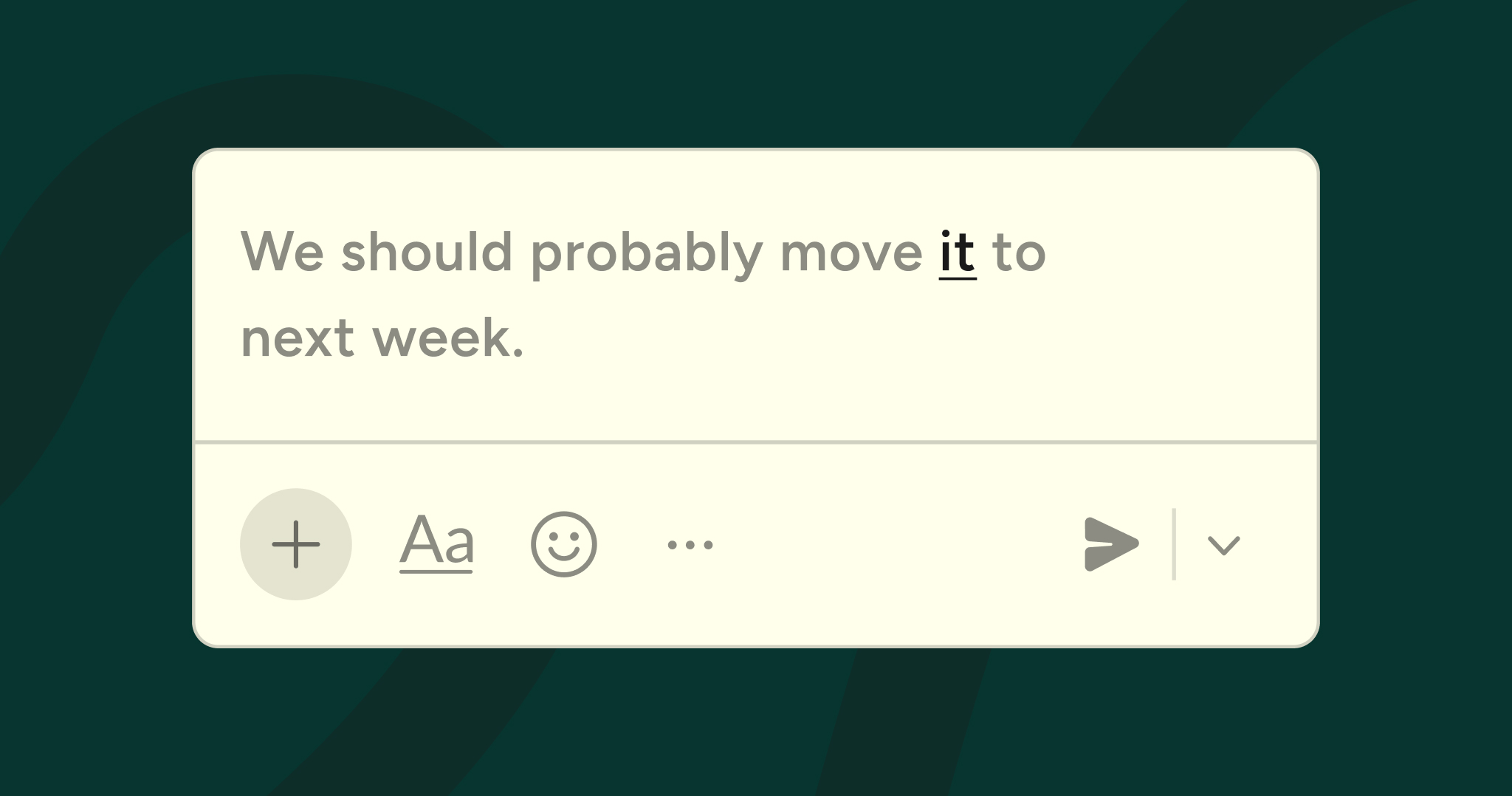
While Android's built-in voice typing is a useful feature, it often falls short for anyone who needs to capture thoughts quickly and accurately. This is where a dedicated AI-powered tool like Wispr Flow truly shines. While the average person types around 40 words per minute, speaking is far more natural and efficient. Wispr Flow is designed to be 4x faster than typing, allowing you to dictate emails, messages, and documents at the speed of thought. With an Android version that was just released, now is the perfect time to download Wispr Flow for free and prepare to reinvent your workflow.
But it's more than just transcription. Unlike basic voice-to-text, Wispr Flow uses advanced AI to automatically edit your speech, removing filler words and structuring your rambled thoughts into clear, polished text. You speak naturally, and Flow produces professional-quality writing without the need for extensive editing. For professionals who write frequently on their phones, this transforms mobile writing from tedious to efficient. As the world of voice interaction grows, with voice expected to be a $45 billion channel by 2028, leveraging a powerful tool like Flow is no longer a luxury, but a competitive advantage.
The growing power of voice
The shift toward voice interaction is one of the most significant trends in mobile technology. According to recent data, 58.6% of US residents have tried voice search, and it's becoming a regular habit for many. Furthermore, 56% of smartphone users now rely on voice to find information about brands and businesses, demonstrating a growing trust in voice as a primary interface. These statistics highlight a clear movement away from manual typing and toward more natural, speech-based interactions. By embracing the Android features in this list, and especially by adopting advanced voice tools like Wispr Flow, you are positioning yourself at the forefront of this productivity revolution.
Conclusion
Your Android device is a deep and powerful tool, and you deserve to use it to its full potential. By moving beyond the default settings and exploring features like Fast App Switching, App Shortcuts, and Split-Screen mode, you can create a more efficient and personalized mobile experience. Tools like Live Caption and One-Handed Mode make your device more accessible, while Notification History and Smart Lock provide convenience and peace of mind.
We encourage you to pick one or two of these features and integrate them into your daily routine this week. You'll likely be surprised at how much of an impact they can have. And as you become more comfortable with leveraging the hidden power of your device, consider taking the next step in productivity by exploring how Wispr Flow can revolutionize the way you write. The future of personal computing is about more natural, human-centered interaction, download now to take advantage of this powerful tool as soon as it’s available.
Frequently asked questions (FAQs)
Are these features available on all Android phones?
Most of these features are part of the core Android operating system and should be available on modern devices from manufacturers like Google, Samsung, OnePlus, and others. However, the exact location of settings and specific implementation may vary slightly. Features like Quick Tap are currently exclusive to Google's Pixel phones, but similar back-tap functionality exists on other devices under different names.
Do these features drain battery?
Generally, no. Features like Fast App Switching, App Shortcuts, and One-Handed Mode are primarily software-based UI changes with negligible battery impact. Features that use sensors, like Smart Lock (using GPS for trusted locations) or Quick Tap (using the accelerometer), consume a small amount of extra power but are highly optimized and should not cause noticeable drain for most users.
How do I enable Developer Options safely?
Enabling Developer Options is safe. The risk comes from changing settings within that menu without understanding what they do. To stay safe, only adjust the settings mentioned in this article (Window, Transition, and Animator duration scales). Avoid changing other settings unless you've researched their function thoroughly.
Can I use multiple features together?
Yes. Many of these features are designed to work together. You could use Split-Screen to view two apps, use Fast App Switching to jump to a third app, and have a Live Caption box running over all of them. Combining these tools is how you unlock true multitasking capability on your Android device.
What is the main difference between Android's built-in voice typing and an app like Wispr Flow?
While Android's built-in voice typing is great for short, simple messages, it's primarily a direct transcription tool. Wispr Flow is an AI writing partner. It not only transcribes your speech with high accuracy but also automatically edits it for clarity, removes filler words, adds punctuation, and learns your unique vocabulary.
Which feature will save me the most time?
This depends on your usage habits. If you are a heavy multitasker, Fast App Switching and Split-Screen will be game-changers. If you frequently perform the same actions within apps, App Shortcuts will save you countless taps. However, for anyone who does a significant amount of writing on their phone, adopting a voice-first workflow with a tool like Wispr Flow will almost certainly provide the single biggest boost in speed and efficiency.
Are there any privacy concerns with these features?
Android's core features are designed with privacy in mind. Live Caption processes all audio directly on your device, so nothing is sent to the cloud. Smart Lock relies on on-device signals and trusted connections. Notification History is stored locally. As with any feature, it's always a good practice to review the permissions you grant to apps and understand how your data is being used, but the features listed here from the core OS are generally considered secure.



.jpg)