

How to speed up your Android phone in 2026 (without factory reset)

TL;DR
Is your Android phone feeling sluggish? You don't need to factory reset or buy a new device to get it running smoothly again. This comprehensive guide walks through 15 proven methods to speed up your Android phone, from clearing cached data and limiting background processes to disabling animations and using lighter app alternatives. We'll cover everything from basic maintenance like storage management and app updates to advanced tweaks like Developer Options and battery optimization. Plus, discover how switching to voice input with tools like Wispr Flow can eliminate typing lag entirely, making your phone feel instantly more responsive. Whether your phone is brand new or a few years old, these techniques will help you reclaim that smooth, fast performance you remember.
Introduction
There's nothing more frustrating than a phone that can't keep up with you. Apps take forever to open, typing feels delayed, scrolling stutters, and what should be simple tasks become exercises in patience. If your Android phone has started feeling sluggish, you're not alone. Over time, even the most powerful devices can slow down as apps accumulate, storage fills up, and background processes multiply.
The good news? You don't need to factory reset your phone or upgrade to a new device to get that smooth, responsive performance back. A factory reset might seem like the nuclear option that solves everything, but it's also a massive hassle. Reinstalling apps, reconfiguring settings, and losing your carefully organized home screen layout isn't worth it when there are simpler solutions available.
This guide presents 15 practical methods to speed up your Android phone, organized from simplest to most advanced. We'll start with basic maintenance tasks anyone can do in minutes, then move into settings adjustments and optimizations that require a bit more technical knowledge. By the end, you'll have a comprehensive toolkit for keeping your Android device running at peak performance, no matter how old it is or how many apps you've installed.
Understanding why your phone slows down
Before diving into solutions, it's helpful to understand why Android phones slow down in the first place. Unlike what many people believe, it's rarely about the hardware getting slower over time. Instead, it's usually about software accumulation and resource management.
Every app you install adds background processes that consume RAM and CPU cycles. Cache files build up, taking up storage space and occasionally causing conflicts. System updates add new features that demand more resources. Apps update themselves with new features that weren't designed with older hardware in mind. Meanwhile, your storage gradually fills with photos, videos, downloads, and app data, leaving less room for the system to operate efficiently.
The good news about these software-based slowdowns is that they're reversible. Unlike a computer that physically degrades, your phone's processor and RAM are just as capable as the day you bought it. You just need to clear away the digital clutter and optimize how your system manages its resources. Let's get started.
1. Clear cached data regularly
Cache files are temporary data stored by apps to speed up loading times and reduce data usage. While caching serves a useful purpose, these files can accumulate to the point where they actually slow your phone down. Clearing cached data is one of the quickest wins for improving performance.
Go to Settings > Storage and tap on "Cached data" or "Free up space." Your phone will show you how much space cached files are consuming. Tapping "Clear cache" removes these temporary files without deleting any important data like login credentials or app settings. Apps will simply rebuild their caches as needed, and you'll often notice an immediate improvement in speed.
For individual apps that seem particularly sluggish, go to Settings > Apps, select the problem app, tap Storage, and choose "Clear cache." This targeted approach can solve issues with specific apps without affecting everything else on your phone.
2. Delete unused apps and files
This sounds obvious, but most people underestimate how many apps they've installed and forgotten about. Every app consumes storage space, even when you're not using it, and many run background processes that drain system resources. Go through your app drawer and honestly assess which apps you've used in the last month.
To see which apps are taking up the most space, go to Settings > Storage > Apps. This shows your apps sorted by storage consumption. You'll often find that apps you rarely use have accumulated gigabytes of data. Delete anything you don't actively use. If you think you might need an app later, you can always reinstall it from the Play Store.
Don't forget about files in your Downloads folder, old photos and videos you've already backed up, and duplicate files. Use the Files app (or your phone's built-in storage manager) to identify large files and duplicates. Even if you have plenty of storage space, keeping your phone lean helps the system run more efficiently.
3. Update all your apps and system software
This might seem counterintuitive since updates sometimes slow things down, but running outdated software is usually worse. Updates often include performance optimizations, bug fixes, and security patches that make apps run more smoothly. Developers regularly release updates specifically to improve performance on older devices.
Go to the Play Store, tap your profile icon, and select "Manage apps & device." You'll see how many updates are available. Tap "Update all" to install them at once. Make sure automatic updates are enabled so you don't have to remember to do this manually.
For system updates, go to Settings > System > System update. If an update is available, install it when you have time and a stable Wi-Fi connection. Major Android version updates can be transformative, often including system-wide performance improvements that benefit every aspect of your phone's operation.
4. Restart your phone regularly
It's surprising how many performance issues disappear with a simple restart. When your phone runs for days or weeks without restarting, apps and system processes can get stuck in inefficient states, memory leaks can accumulate, and temporary glitches can compound. A restart clears all of this and gives your phone a fresh start.
Hold down the power button and select "Restart" at least once a week. If you often forget, some phones let you schedule automatic restarts during the night. This simple habit can prevent many slowdown issues before they become noticeable.
If your phone is severely frozen or unresponsive, you can force a restart by holding the power button for 10 to 15 seconds (the exact method varies by manufacturer). This should be a last resort, but it's a useful trick to know.
5. Limit background processes and app activity
Many apps run in the background even when you're not using them, consuming RAM and battery while checking for updates, syncing data, or showing notifications. While some background activity is useful, excessive background processes are a major cause of slowdowns.
Go to Settings > Apps and review which apps are allowed to run in the background. For apps you use infrequently, restrict their background activity. On Android 12 and newer, you can also use "Pause app activity if unused," which automatically limits apps you haven't opened in a while.
For more granular control, go to Settings > Developer options (we'll explain how to enable this later) and scroll to "Background process limit." The default is "Standard limit," but you can set it to limit how many processes can run simultaneously. Be cautious with this setting, as being too aggressive can prevent apps from functioning properly. Try "At most three processes" as a middle ground.
6. Disable or reduce animations
Animations make Android feel polished and modern, but they also introduce delays in every interaction. Every time you open an app, switch screens, or close a window, your phone plays an animation that takes a fraction of a second. Reducing or disabling these animations makes your phone feel dramatically faster.
First, enable Developer Options by going to Settings > About phone and tapping "Build number" seven times. Then go to Settings > System > Developer options and scroll down to the Drawing section. You'll see three animation settings: Window animation scale, Transition animation scale, and Animator duration scale.
Change each of these from 1x to 0.5x to make animations twice as fast, or turn them off completely by setting them to "Off." The difference is immediately noticeable. Your phone will feel snappier and more responsive, even though you haven't actually increased its processing power. This is one of the single most effective tweaks for perceived performance.
7. Use Lite or web versions of apps
Many popular apps offer "Lite" versions designed for lower-end devices or slower connections. Apps like Facebook Lite, Messenger Lite, Twitter Lite (now X Lite), and others provide core functionality while using significantly less storage, RAM, and data. Even on capable phones, these lightweight alternatives can improve overall system performance by reducing resource consumption.
If a Lite version isn't available, consider using the web version through your browser instead of the dedicated app. Progressive Web Apps (PWAs) have improved dramatically, and many websites now offer app-like experiences without the resource overhead of a full native app. Twitter, Instagram, and many other services work surprisingly well through Chrome or Firefox.
This approach also reduces clutter in your app drawer and means fewer apps competing for background resources. You might find that you don't actually need dozens of dedicated apps when web versions work just as well for your use case.
8. Manage your storage space
Even if you're not completely out of storage, running low can significantly slow your phone down. Android needs free space to operate efficiently, creating temporary files, moving data around, and caching content. As a general rule, try to keep at least 10 to 15% of your total storage free.
Go to Settings > Storage to see what's consuming space. Photos and videos are usually the biggest culprits. Use cloud services to back up your media, then delete local copies of anything you don't need immediate access to. Enable "Free up space" features in apps like Photos that can automatically remove backed-up items from your device.
Large apps like games can consume 5 to 10 GB each. If you're not actively playing them, uninstall and reinstall when you want to play again. Downloads folders often contain gigabytes of forgotten files. The "Files" app can help you identify what's taking up space and where duplicates exist.
9. Disable unnecessary widgets and live wallpapers
Widgets and live wallpapers can make your home screen look great, but they come at a performance cost. Every widget that displays real-time information, like weather, news, or calendar events, requires background processes to keep that information updated. Live wallpapers consume even more resources, constantly animating in the background.
Review your home screen widgets and remove any you don't actively use multiple times per day. A weather widget might seem useful, but if you only check it once a day, you can just open the weather app instead. Keep only the widgets that genuinely save you time by providing at-a-glance information you need frequently.
Replace live wallpapers with static images. The performance gain might seem small, but it's constant, every moment your live wallpaper is animating, it's consuming CPU and GPU resources that could be used for apps you're actually trying to use.
10. Turn off auto-sync for accounts you don't need
Android can sync data for all your accounts in real time, from email and contacts to app data and cloud storage. While convenient, constant syncing in the background consumes battery, data, and system resources. Most people have accounts configured that they rarely actually use.
Go to Settings > Passwords & accounts and review which accounts are configured on your phone. For accounts you don't need instant updates from, tap the account and disable sync for services you don't use. You can still manually sync when needed by opening the relevant app.
For email accounts, consider changing from push notifications to fetch on an interval, like every 15 or 30 minutes. Unless you need instant email notifications, this reduces background activity while still keeping you reasonably up to date.
11. Optimize battery settings and identify battery hogs
Ironically, apps that drain your battery are often the same ones slowing your phone down. They're consuming CPU cycles, keeping the device awake, and preventing efficient resource management. Identifying and addressing battery hogs often improves overall performance.
Go to Settings > Battery and tap "Battery usage" to see which apps are consuming the most power. Apps at the top of the list are your primary targets. For apps using excessive battery, tap them and select "Background restriction" or "Force stop" if they're misbehaving.
Enable Adaptive Battery in Settings > Battery > Adaptive preferences. This uses machine learning to identify which apps you use most and prioritizes resources for them while limiting background activity for apps you rarely open. Over time, this helps your phone learn your usage patterns and optimize accordingly.
12. Reset app preferences without losing data
Sometimes apps get into problematic states where their settings or permissions are causing conflicts. Resetting app preferences can solve these issues without deleting any data or forcing you to reconfigure everything manually.
Go to Settings > Apps > See all apps, tap the three-dot menu in the top right, and select "Reset app preferences." This resets all preferences for disabled apps, notification permissions, default apps, background data restrictions, and permission restrictions. Your data, logins, and app contents remain untouched.
This is particularly useful if you're experiencing weird behavior like apps not opening, notifications not working, or certain features that used to work suddenly failing. It's a middle ground between doing nothing and the nuclear option of a factory reset.
13. Switch to faster input methods
Here's something most people don't consider: if typing feels laggy, the problem might not be your phone's performance, it might be your input method. Traditional keyboard typing on phones is inherently slow, and keyboard apps themselves can consume significant resources, especially ones with themes, GIF support, and heavy animations.
This is where voice input becomes a game-changer. Speaking is not only faster than typing, averaging 150 words per minute versus 40 for even skilled mobile typists, but it also reduces the load on your phone's processor. You're not constantly tapping, triggering haptic feedback, and forcing the keyboard to predict and correct your input.
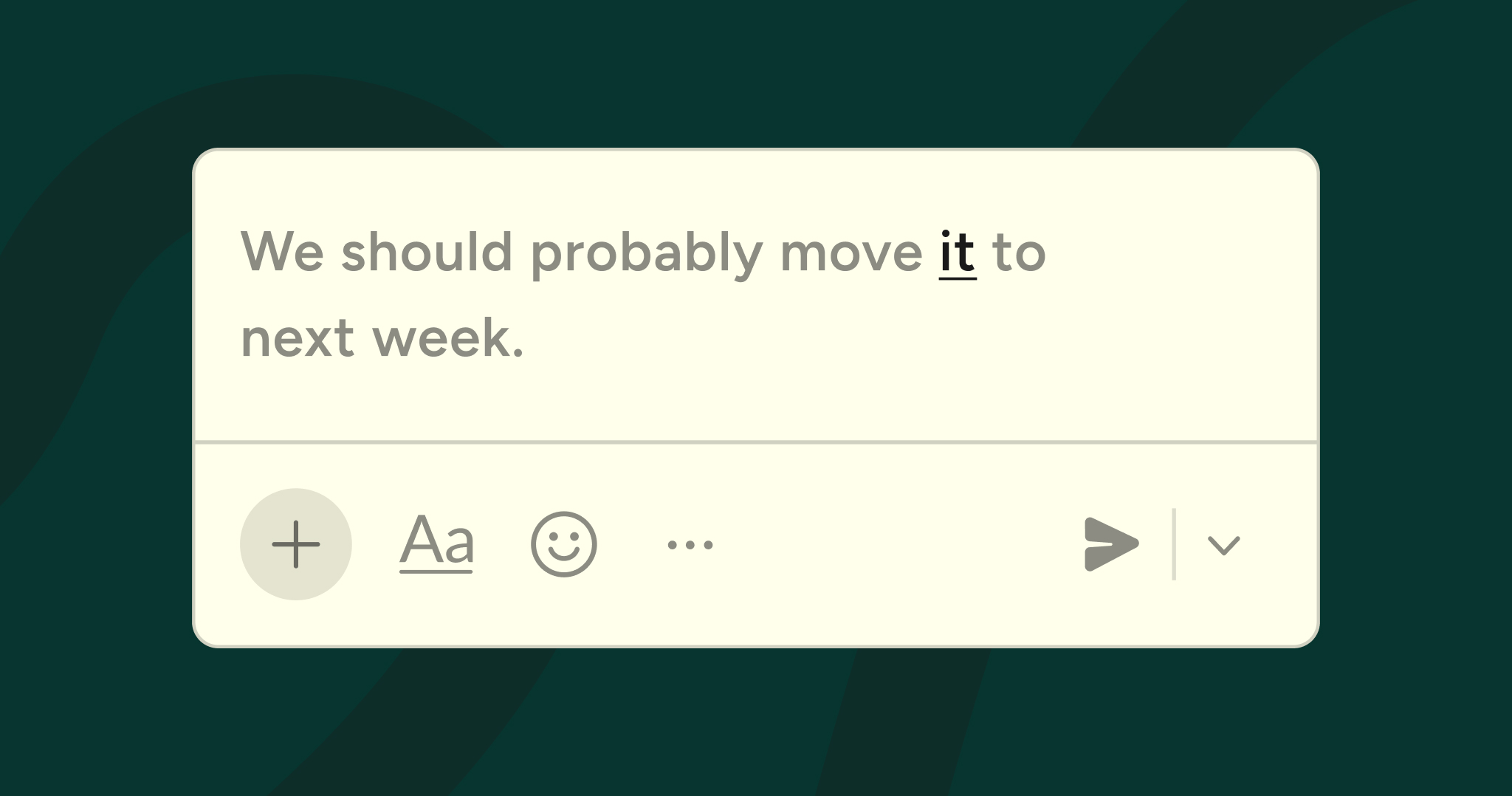
While Android's built-in voice typing is functional for basic transcription, dedicated voice-to-text tools like Wispr Flow take this to another level. Flow is designed to be 4x faster than typing, but more importantly for phone performance, it handles the heavy lifting of AI processing intelligently, making typing feel instant and effortless. Instead of fighting with keyboard lag or autocorrect mistakes, you simply speak naturally and get polished text.
Beyond raw speed, Flow automatically edits your speech, removing filler words and structuring your thoughts into clear, professional text. It learns your personal dictionary of unique words and names, so you're not constantly correcting the same mistakes. For anyone who writes emails, messages, or documents on their phone, voice input isn't just faster, it makes the entire experience feel more responsive.
Wispr Flow is available on iOS, Mac, Windows, and Android. If typing lag is one of your biggest frustrations with your phone, download Wispr Flow to experience truly intelligent voice writing. Sometimes the best way to speed up your phone isn't to make the keyboard faster, it's to stop relying on the keyboard entirely.
14. Use a lighter launcher
Your launcher is the interface you interact with every time you use your phone, the home screen, app drawer, and navigation system. Heavy launchers with lots of customization options, animations, and features can slow down your entire experience. Switching to a lighter launcher can make everything feel faster.
Popular lightweight launchers include Lawnchair, Niagara Launcher, and even older versions of Nova Launcher before it became feature-heavy. These launchers focus on speed and efficiency over visual effects and customization. They use less RAM, load faster, and make animations snappier.
The catch is that you'll lose some customization options and features you might be used to. However, if performance is your priority, a lightweight launcher can transform how responsive your phone feels, especially on older or lower-end devices.
15. Consider a factory reset as a last resort
If you've tried everything else and your phone is still painfully slow, a factory reset might be necessary. This wipes everything and returns your phone to its original state, eliminating any software issues, corrupted files, or problematic configurations that have accumulated over time.
Before you reset, make sure everything important is backed up. Use cloud services for photos, videos, and documents. Export your contacts. Note which apps you actually use so you can reinstall only what you need. Go to Settings > System > Reset options > Erase all data (factory reset).
When setting up your phone again, be intentional about what you install. This is a great opportunity to start fresh, installing only apps you actively use and configuring settings optimally from the start. Many people find their phones run better after a reset simply because they're more selective about what they add back.
Creating a maintenance routine
Speed optimization isn't a one-time fix. To keep your phone running smoothly, establish a simple maintenance routine. Once a week, clear cached data and restart your phone. Once a month, review installed apps and delete ones you're not using. Check for system and app updates regularly. Monitor your storage and keep at least 10% free.
These small habits take just a few minutes but prevent the gradual accumulation of slowdown factors that make phones feel old before their time. Think of it like maintaining a car, regular oil changes are easier than replacing an engine.
The combination of these 15 techniques should have your Android phone feeling significantly faster. Start with the quick wins like clearing cache and disabling animations, then work your way through the more involved optimizations. You'll likely notice improvements after just the first few steps, and the cumulative effect of all these tweaks can make your phone feel like new again.
Conclusion
A slow Android phone doesn't have to be your reality. As we've explored in this guide, there are numerous ways to reclaim that smooth, responsive performance without resorting to a factory reset or buying a new device. From basic maintenance like clearing cache and deleting unused apps to advanced tweaks like limiting background processes and adjusting animation speeds, each technique contributes to a faster, more efficient experience.
The key is understanding that phone slowdowns are almost always about software accumulation and resource management, not hardware degradation. Your phone's processor is just as capable today as when you bought it. By methodically addressing the various factors that contribute to slowdowns, you can restore performance to near-original levels.
Remember that different techniques will have different impacts depending on your specific situation. If your storage is nearly full, managing space will make the biggest difference. If you have dozens of background apps, limiting those processes will be transformative. If animations feel sluggish, reducing animation scales provides instant gratification. Start with the issues most relevant to your experience and work from there.
Consider also how you interact with your phone. If typing feels slow and frustrating, maybe the solution isn't to speed up your keyboard, maybe it's to move beyond keyboards entirely. Voice input represents a fundamental shift in how we interact with our devices, and tools like Wispr Flow demonstrate that the future of mobile productivity isn't about faster typing, it's about working more naturally.
Your Android phone is a powerful tool capable of remarkable performance. With the techniques outlined in this guide and a commitment to regular maintenance, you can keep it running smoothly for years to come. Speed isn't just about having the latest hardware, it's about optimizing what you already have.
Frequently asked questions (FAQs)
1. How often should I clear my cache?
For most users, clearing cache once a month is sufficient. If you use a lot of media-heavy apps like Instagram, YouTube, or streaming services, you might benefit from clearing cache weekly. Keep in mind that clearing cache doesn't delete important data like logins or settings, apps simply rebuild their cache files as needed. If a specific app is acting sluggish, clear its cache immediately rather than waiting for your regular maintenance schedule.
2. Will disabling animations make my phone look ugly?
Not at all. Setting animations to 0.5x (half speed) makes everything feel faster while keeping the visual polish that makes Android feel smooth. Completely disabling animations by setting them to "Off" makes everything instant but can feel a bit abrupt. Most people find that 0.5x is the sweet spot, fast enough to feel responsive, but still visually pleasant. Try both and see which you prefer.
3. How much storage space should I keep free?
As a general rule, keep at least 10 to 15% of your total storage free. So if you have a 128 GB phone, aim to keep at least 13 to 19 GB available. When storage gets too full, Android struggles to create temporary files, move data around, and cache content, which significantly impacts performance. If you're constantly getting "storage full" warnings, it's time to aggressively delete or back up files.
4. Can these methods damage my phone?
No, all the methods described in this article are safe and reversible. Even Developer Options tweaks like limiting background processes or adjusting animation scales can be undone by changing the settings back. The only method that's irreversible is a factory reset, which is why we listed it last and emphasized backing up your data first. Always start with the gentler approaches and work your way up to more aggressive measures only if needed.
5. Why does my phone slow down after updates?
New updates sometimes add features that require more resources than your hardware was originally designed for. However, updates also include performance optimizations and bug fixes. The initial slowdown after a major update often improves after a day or two as the system finishes indexing, optimizing apps, and completing background tasks. If slowdown persists weeks after an update, the other techniques in this article should help compensate.
6. Will using Wispr Flow drain my battery?
Voice input tools are generally more battery-efficient than you might think. While processing voice does use resources, it's often less intensive than the constant screen-on time, haptic feedback, and processing required for typing. Wispr Flow is designed with efficiency in mind. The bigger benefit is that by speaking instead of typing, you complete tasks faster, which means less overall screen time and battery drain. You can also use Flow everywhere with new features designed for versatility.
7. Is a factory reset really necessary?
For most people, no. The 14 other methods in this article should resolve performance issues without needing to wipe your phone. A factory reset is a last resort for severe cases where software corruption or deeply problematic configurations can't be fixed any other way. If your phone is still very slow after trying everything else, or if it's having serious stability issues like constant crashes or boot loops, then a factory reset might be justified. Otherwise, stick with the less drastic approaches.




.jpg)