

Best Android shortcuts and gestures you should be using in 2026

TL;DR
Your Android phone is packed with shortcuts and gestures that can dramatically speed up your daily tasks, but most users only scratch the surface of what's possible. This guide reveals 20 essential shortcuts and gestures every Android user should master, from basic navigation gestures and quick settings access to advanced features like split-screen multitasking, screenshot shortcuts, and automation triggers. Learn how to navigate your phone with fluid swipes instead of button taps, access your most-used features in seconds, and even trigger complex actions with a simple double-tap on the back of your device. We'll also explore how voice shortcuts with tools like Wispr Flow can eliminate repetitive typing entirely, letting you insert entire paragraphs with a single voice command. Whether you're a productivity enthusiast or just tired of tapping through menus, these shortcuts will transform how you interact with your Android device.
Introduction
The difference between someone who merely uses their phone and someone who masters it often comes down to shortcuts and gestures. While the average user taps through multiple screens to accomplish basic tasks, power users glide through their phones with efficient swipes, quick taps, and keyboard shortcuts that make everything feel effortless.
Android's gesture system has evolved significantly over the years, moving from a three-button navigation bar to fluid, iPhone-inspired swipes that feel more natural and take up less screen space. But gestures are just the beginning. Android also supports hardware shortcuts, accessibility shortcuts, keyboard shortcuts, and app-specific shortcuts that can dramatically reduce the time spent on repetitive tasks.
The beauty of shortcuts isn't just about saving seconds here and there, though those seconds add up to hours over time. It's about reducing friction. Every time you have to hunt through menus or tap multiple buttons to accomplish something simple, you're pulled out of your flow. Shortcuts keep you in the moment, letting you focus on what you're trying to do rather than how to do it.
This guide will walk you through 20 of the most useful shortcuts and gestures available on Android in 2026. We'll start with basic navigation gestures that every user should know, move through powerful multitasking shortcuts, and end with advanced techniques that will make you feel like an Android wizard. By the end, you'll wonder how you ever used your phone without them.
Understanding Android's gesture system
Before diving into specific shortcuts, it's important to understand the two main navigation systems Android offers: three-button navigation and gesture navigation. Most modern Android phones default to gesture navigation, which uses swipes instead of buttons to navigate your phone.
In gesture navigation, a swipe up from the bottom takes you home, a swipe up and hold shows recent apps, and a swipe from the left or right edge goes back. This system frees up screen real estate and feels more fluid once you get used to it. However, some users prefer the traditional three-button setup with back, home, and recent apps buttons clearly visible.
You can switch between these systems in Settings > System > Gestures > System navigation. Try both and use whichever feels more natural to you. Most of the shortcuts in this guide work with either system, though some are specifically designed for gesture navigation. We'll note when a shortcut is navigation-specific.
1. Quick app switching: The fastest way to multitask
One of the most powerful yet underused gestures is quick app switching, which lets you instantly jump between your two most recently used apps. Instead of opening the app switcher and scrolling through cards, you can toggle between apps with a single motion.
On gesture navigation, swipe right on the gesture bar at the bottom of your screen. Your previous app appears instantly. Swipe right again to go back another step, or swipe left to move forward through your app history. On three-button navigation, double-tap the recent apps button to achieve the same instant switch between your last two apps.
This is invaluable when you're copying information between apps, referencing something while writing, or jumping between a messaging conversation and another task. Master this gesture and you'll find yourself multitasking with far less friction.
2. One-handed mode: Reach the top of your screen
As phones have grown larger, reaching the top of the screen with one thumb has become nearly impossible for most people. One-handed mode solves this by shrinking your screen content down toward the bottom, bringing everything within reach.
Enable it in Settings > System > Gestures > One-handed mode. Once activated, you can trigger it by swiping down on the gesture bar at the bottom of your screen. The entire interface scales down, letting you access notifications, tap buttons at the top, and navigate menus without stretching or using a second hand.
This is particularly useful when you're holding onto a subway pole, carrying groceries, or simply don't want to use both hands. A quick swipe up exits one-handed mode and returns to normal. It's a small gesture that makes a big difference in daily usability.
3. Quick Settings shortcuts: Two fingers, infinite power
Instead of swiping down once to see your notifications and then again to access Quick Settings, you can jump directly to your most-used toggles with a two-finger swipe. Place two fingers at the top of your screen and swipe down to instantly open the full Quick Settings panel.
Once you're in Quick Settings, long-press any tile to jump directly to that feature's settings page. Long-press Wi-Fi to see available networks and adjust Wi-Fi settings. Long-press Bluetooth to manage paired devices. This shortcut within a shortcut saves countless trips through the Settings app for common adjustments.
You can also customize which tiles appear in Quick Settings by tapping the pencil icon. Arrange your most-used toggles in the top row for one-tap access, and remove tiles you never use. A well-organized Quick Settings panel becomes your command center for the phone's most essential functions.
4. Screenshot shortcuts: Three ways to capture your screen
Taking screenshots is one of the most common tasks on a smartphone, and Android offers multiple methods depending on your preference and situation. The traditional method is pressing Power and Volume Down simultaneously for one second. This works universally across all Android devices.
On phones with gesture navigation, you can also take a screenshot by holding down the power button and selecting "Screenshot" from the menu. Some manufacturers add their own shortcuts,Samsung devices let you swipe the edge of your palm across the screen, while Google Pixel phones let you tap "Screenshot" from the power menu.
But the fastest method on many newer Android phones is using Quick Tap. Double-tap the back of your phone (we'll cover setting this up later), and you can configure it to instantly take a screenshot. No button hunting, no awkward finger positioning, just tap-tap and you're done.
5. Split-screen for true multitasking
Split-screen mode lets you use two apps simultaneously, dividing your screen in half. This is essential for referencing information while writing, watching a video while texting, or keeping an eye on multiple things at once.
To activate split-screen, open the recent apps view (swipe up and hold from the bottom), then tap the app icon at the top of any app card. Select "Split screen" from the menu, and that app will snap to the top half of your screen. Choose another app from your recent apps or home screen to fill the bottom half.
You can drag the divider between apps to resize them, giving more space to whichever app needs it. To exit split-screen, drag the divider all the way to the top or bottom. Not all apps support split-screen, but most major apps do. Once you get used to working with two apps at once, you'll find single-tasking feels limiting.
6. App Shortcuts: Long-press for quick actions
Most apps include shortcuts to specific actions that you can access without opening the app. Long-press any app icon on your home screen or in your app drawer to reveal a menu of available shortcuts. These vary by app, but they're consistently useful.
Long-press your camera app to jump directly to selfie mode or video recording. Long-press your messaging app to start a new message to your most frequent contacts. Long-press your calendar to create a new event. Long-press your navigation app to get directions home or to work.
The real power move is dragging these shortcuts out of the menu and placing them as individual icons on your home screen. This gives you one-tap access to actions you use frequently. If you always start your morning by texting the same person, put that shortcut on your home screen and save yourself several taps every day.
7. Quick Tap: Your phone's invisible button
Quick Tap (called "Back Tap" on some devices) turns the back of your phone into a customizable button. Enable it in Settings > System > Gestures > Quick Tap. Once activated, a double-tap anywhere on the back of your phone can trigger your choice of actions.
Common uses include taking screenshots, opening your most-used app, toggling the flashlight, or playing and pausing media. The sensitivity can be adjusted so it doesn't trigger accidentally in your pocket but responds reliably when you intentionally tap. This works through most phone cases, making it a consistently available shortcut.
The genius of Quick Tap is that you can trigger it without looking at your phone. Need your flashlight in the dark? Double-tap the back. Want to quickly capture something on your screen? Double-tap the back. It feels futuristic but becomes second nature within days.
8. Notification management shortcuts
Managing notifications efficiently keeps your phone from becoming overwhelming. When a notification appears, swipe it slowly to the left or right to reveal options. Swipe all the way to dismiss it, or stop mid-swipe to access a gear icon that lets you adjust notification settings for that app.
Long-press any notification to instantly access its notification settings. This is faster than navigating through Settings > Apps > Notifications. You can adjust the notification level, disable sound, turn off badges, or block notifications from that app entirely, all from the notification itself.
For multiple notifications from the same app, Android groups them together. Tap the stack to expand all notifications, or swipe the entire stack to dismiss them all at once. This keeps your notification shade manageable even if you receive dozens of notifications throughout the day.
9. Volume button shortcuts
Your volume buttons can do more than just adjust sound. By default, pressing volume buttons controls media or ringer volume depending on context. But you can customize this behavior in Settings > Sound > Volume button behavior.
Press Volume Down and Power simultaneously to take a screenshot (as mentioned earlier). On some devices, pressing Volume Down repeatedly when your screen is off can launch the camera app, perfect for capturing moments quickly. Volume buttons can also be used as camera shutters when the camera app is open, making it easier to take steady photos.
In an emergency, pressing Power five times rapidly can trigger emergency SOS features, automatically calling emergency services and notifying your emergency contacts. Check Settings > Safety & emergency to configure this feature. It's a shortcut you hope you never need, but it's worth setting up.
10. Keyboard shortcuts for external keyboards
If you use an external keyboard with your Android phone or tablet, keyboard shortcuts dramatically improve productivity. While the exact shortcuts vary slightly by device and Android version, these work on most systems running Android 11 or newer.
Alt-Tab switches between recent apps, just like on a desktop computer. Search (or Super/Windows key) opens the app drawer. Alt-Shift-Tab cycles through apps in reverse order. Ctrl-N creates a new item in most apps (new email, new document, new note). Ctrl-W closes the current app or tab.
In text fields, standard keyboard shortcuts like Ctrl-C (copy), Ctrl-V (paste), Ctrl-X (cut), and Ctrl-Z (undo) all work as expected. Ctrl-A selects all text. Shift plus arrow keys lets you select text precisely. These shortcuts make typing on Android with an external keyboard feel just like using a desktop computer.
11. Assistant shortcuts: Voice commands that actually work
Long-press the power button or say "Hey Google" to activate Google Assistant (or your manufacturer's assistant on phones like Samsung). But beyond basic voice commands, there are specific shortcuts that can trigger complex actions.
Set up routines in the Google Home app that trigger multiple actions with a single phrase. Say "Good morning" to have your phone read your calendar, give you weather and traffic updates, and turn on specific lights. Say "I'm heading home" to send a text message and start navigation automatically.
For apps that support it, you can use voice commands to perform actions without opening the app. "Set a timer for 10 minutes," "Play my workout playlist," "Show me my calendar for tomorrow," or "Remind me to call Mom at 6 pm" all work hands-free. The more you use voice commands, the more natural they become.
12. AI-powered voice dictation: The ultimate productivity hack
While Android's built-in voice typing has improved significantly, it still falls short when you need to write substantial content quickly. This is where dedicated voice tools transform your workflow. Standard voice typing transcribes what you say, but you're still responsible for editing, formatting, and cleaning up your rambling thoughts into coherent text.
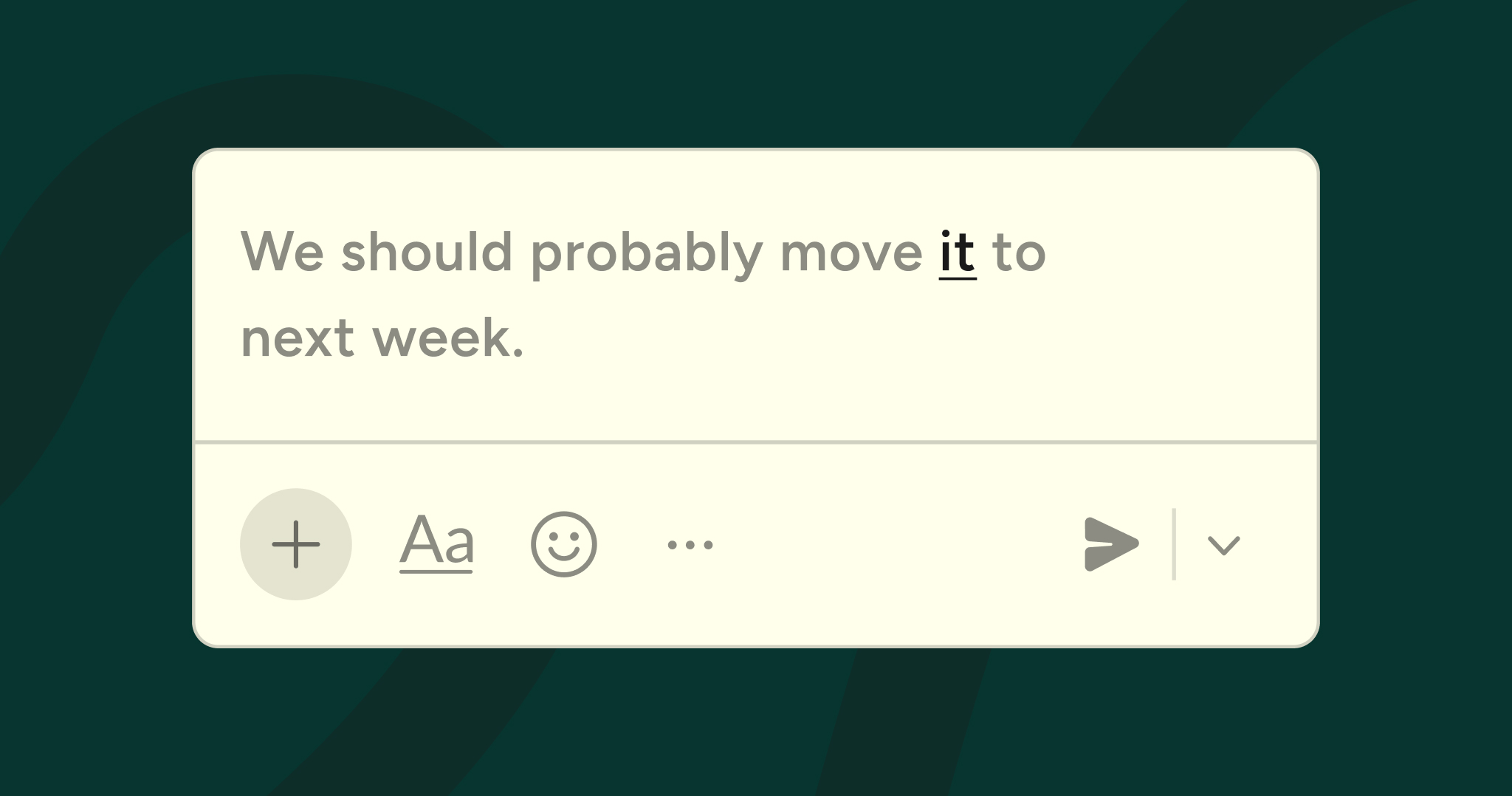
Wispr Flow takes voice dictation to an entirely different level. Instead of just transcribing your words, Flow uses AI to automatically edit your speech, removing filler words, fixing grammar, and structuring your thoughts into polished text. It's designed to be 4x faster than typing because you get finished, professional text instead of rough transcription that needs extensive editing.
Say something naturally like: "Hey um can you send me that report we talked about yesterday I think it was the Q3 analysis yeah send that over when you get a chance thanks."
Standard voice typing writes exactly that, including all the filler words and run-on sentences. Flow writes: "Hey, can you send me that report we talked about yesterday? I think it was the Q3 analysis. Send that over when you get a chance. Thanks."
The output is immediately usable. No editing required. This transforms mobile writing from tedious to efficient.
For professionals who write many emails daily, this is transformative. You can compose detailed responses while walking between meetings, draft project updates during your commute, or capture comprehensive thoughts immediately after a conversation while details are fresh. Voice input with AI editing extends what's possible on mobile from quick messages to actual writing.
Wispr Flow is currently available on iOS, macOS, Windows, and Android. Download Wispr Flow for Android now to be among the first Android users to experience truly intelligent voice dictation.
13. Smart Lock shortcuts
Smart Lock keeps your phone unlocked in trusted situations, eliminating the need to constantly enter your PIN or use your fingerprint. While not exactly a gesture or button shortcut, it's a time-saving feature that deserves mention in any shortcuts guide.
Enable Smart Lock in Settings > Security > Smart Lock. You can set your phone to stay unlocked when connected to trusted Bluetooth devices (your car, smartwatch, or headphones), at trusted locations (home or work), or when it detects you're carrying it (on-body detection).
The shortcut benefit is enormous: when you're at home or your phone is connected to your car, you can check your phone instantly without unlocking it every single time. Over the course of a day, this saves dozens of unlock gestures while maintaining security when you're in public or unfamiliar locations.
14. Recent apps shortcuts
Beyond quick app switching, the recent apps view has several hidden shortcuts. When you're in the app switcher (swipe up and hold from the bottom), you can swipe away apps to close them, but you can also interact with the app cards themselves.
On many Android phones, you can tap the app icon at the top of a card to reveal options like app info, split-screen, or pop-up view. You can also select text within app cards in the recent apps view, which is useful for copying information from an app without fully opening it.
Swiping all the way to the end of your recent apps and tapping "Clear all" closes everything at once, freeing up RAM and giving you a fresh start. While you don't need to close apps obsessively, clearing everything occasionally can improve performance and help you reset mentally.
15. Navigation gesture customizations
Most people don't realize that gesture navigation can be customized beyond the defaults. The sensitivity of the back gesture can be adjusted so it doesn't trigger accidentally when you're trying to interact with apps that use edge swipes (like Gmail's swipe to archive).
Go to Settings > System > Gestures > System navigation > Settings (the gear icon). Here you can adjust the back gesture sensitivity for each edge of the screen. If you find yourself accidentally triggering the back gesture when using certain apps, reduce the sensitivity on that side.
Some phones also let you customize what happens with a swipe up gesture from the center versus the sides of the gesture bar. Experiment with these settings to create a navigation system that perfectly matches your usage patterns.
16. Accessibility shortcuts for everyone
Accessibility features aren't just for users with disabilities, they often provide shortcuts that benefit everyone. The accessibility button can be configured to instantly trigger useful features like magnification, screen recording, or one-handed mode.
Enable the accessibility button in Settings > Accessibility > Accessibility button. Choose which features it should trigger. The button appears as a floating icon on your screen, or you can have it appear in the navigation bar. One tap can activate features that would normally require navigating through multiple settings menus.
Similarly, the volume key shortcut for accessibility can be enabled to quickly start accessibility features by holding both volume keys for three seconds. Configure this in Settings > Accessibility > Volume key shortcut.
17. Camera shortcuts
Getting to your camera quickly can mean the difference between capturing a moment and missing it. Most Android phones let you double-press the power button to launch the camera instantly, even from the lock screen. This works whether your screen is off or on another app.
Once your camera is open, you can use volume buttons as shutter buttons for easier one-handed photography. Some phones support voice commands like "Cheese" or "Capture" to take photos hands-free, useful for group photos where you want to be in the frame.
For screenshots of specific content within the camera viewfinder, or to quickly share what you're seeing, these hardware shortcuts beat opening the camera app from the home screen every time.
18. Developer Options gesture tweaks
We mentioned Developer Options in the previous article about speeding up your phone, but it's worth highlighting the gesture-related tweaks available here. Enable Developer Options by going to Settings > About phone and tapping "Build number" seven times.
In Developer Options, you can adjust pointer location to see exactly where your touches register, which is useful for troubleshooting gesture sensitivity issues. You can also adjust animation scales to make gesture animations faster or disable them entirely for the most responsive feel.
Some advanced users enable "Force activities to be resizable" which makes all apps work with split-screen even if they don't officially support it. While this can cause layout issues in some apps, it expands your multitasking possibilities significantly.
19. Third-party gesture apps
While Android's built-in gestures are powerful, third-party apps can add even more gesture shortcuts. Apps like Edge Gestures, Fluid Navigation Gestures, and One Hand Operation+ let you create custom swipe actions from any edge of your screen.
You can create gestures that jump directly to specific apps, trigger system actions like toggling flashlight or Wi-Fi, or even execute Tasker tasks for complex automation. The learning curve is steeper than built-in gestures, but the customization possibilities are nearly limitless.
Be cautious about battery impact and potential conflicts with built-in gestures. Start with a few custom gestures and expand gradually. The goal is to enhance your workflow, not to create such a complex gesture system that you're constantly triggering the wrong action.
20. Creating custom shortcuts with routines and automation
The ultimate shortcut is one you don't have to trigger at all, automation that happens based on context. Use Google Assistant Routines or apps like Tasker to create custom shortcuts that respond to specific triggers.
Set up a routine that automatically enables Do Not Disturb, dims your screen, and opens your reading app when you say "Reading time." Create a shortcut that sends a "On my way" text to your partner and starts navigation home when you leave work. Configure your phone to automatically open your music app and connect to Bluetooth when you plug in headphones.
These automated shortcuts eliminate entire categories of manual tasks. The initial setup requires some time investment, but the long-term time savings and reduced mental load make it worthwhile for tasks you perform regularly.
Building your personal shortcut system
With 20 shortcuts at your disposal, the question becomes: where do you start? Don't try to learn everything at once. Pick two or three shortcuts that address your biggest pain points or most frequent tasks. Use them consistently for a week until they become muscle memory, then add more.
Most people benefit from starting with navigation gestures (quick app switching, split-screen) and Quick Settings customization. These have the broadest impact on daily usage. From there, move to shortcuts specific to your workflow, screenshot methods if you share a lot of content, voice shortcuts if you write frequently, camera shortcuts if you take lots of photos.
Keep a note on your phone of shortcuts you want to remember to use. When you find yourself tapping through multiple screens to do something, there's probably a shortcut for it. Look it up, try it a few times deliberately, and soon it'll be automatic.
Conclusion
Shortcuts and gestures transform Android from a collection of apps into an efficient, personalized tool that responds to your needs with minimal friction. The difference between tapping through five screens and swiping once might only be a few seconds, but those seconds compound. More importantly, shortcuts keep you in your flow, reducing the cognitive load of remembering how to navigate your phone.
The shortcuts in this guide range from basic navigation gestures that every Android user should master to advanced customizations that let you bend your phone to your exact workflow. Start with the fundamentals like quick app switching and Quick Settings access. Master split-screen multitasking and app shortcuts. Explore Quick Tap and voice commands. And for anyone who writes on their phone, voice shortcuts with tools like Wispr Flow represent the next evolution in mobile productivity.
Remember that the best shortcut system is one you'll actually use. A complex setup with 50 custom gestures is less valuable than five simple shortcuts you use every day. Be intentional about what you learn, practice deliberately until shortcuts become automatic, and gradually build a personalized system that makes your Android device feel like an extension of yourself.
Your phone is capable of responding to your needs faster and more efficiently than you're probably using it. With the shortcuts and gestures outlined in this guide, you're now equipped to unlock that potential. The only thing left is to start using them.
Frequently asked questions (FAQs)
1. Should I use gesture navigation or three-button navigation?
This is personal preference. Gesture navigation frees up screen space and can feel more fluid once you're used to it, but three-button navigation provides clearer visual cues and can be more precise. Try gesture navigation for a week,most people who commit to learning it prefer it after the adjustment period. If it still feels awkward, there's no shame in switching back to three-button navigation. Both systems work well.
2. Will Quick Tap drain my battery?
No, Quick Tap uses your phone's accelerometer and gyroscope to detect taps, which consume minimal power. These sensors are already active for other features like auto-rotate and step counting. The battery impact is negligible. You're far more likely to save battery by using Quick Tap to quickly accomplish tasks rather than keeping your screen on longer while navigating through menus.
3. How many shortcuts should I try to learn?
Start with three to five shortcuts that address your most common tasks. Master those until they're automatic (usually one to two weeks), then add more. Trying to learn 20 shortcuts at once will overwhelm you and you won't retain any of them. It's better to deeply integrate a few shortcuts into your muscle memory than to superficially know many shortcuts you never actually use.
4. Do these shortcuts work on all Android phones?
Most shortcuts work across all Android devices, but some are manufacturer-specific. Quick Tap is available on Google Pixel phones and some other devices but not all. Samsung has its own gesture system called One Hand Operation+. The core gestures like quick app switching, split-screen, and Quick Settings access work on virtually all Android phones running Android 10 or newer. Check your specific device's settings to see which features are available.
5. Can I customize the Quick Tap action on my phone?
Yes, on phones that support Quick Tap, you can choose from multiple actions including taking screenshots, accessing notifications, opening recent apps, pausing or playing media, showing the assistant, and more. Go to Settings > System > Gestures > Quick Tap to see available options. Some phones even let you set different actions for double-tap versus triple-tap.
6. How does Wispr Flow compare to Android's built-in voice typing?
Android's built-in voice typing is a direct transcription tool, it writes exactly what you say, including filler words and grammatical mistakes. Wispr Flow is an AI writing partner that automatically edits your speech into polished text, removing fillers, fixing grammar, and adding proper punctuation. The snippet feature for voice shortcuts goes even further, letting you insert entire paragraphs with a simple voice command. It's the difference between dictation and intelligent voice writing.
7. Will using too many shortcuts make my phone slower?
No, shortcuts themselves don't impact performance. They're simply different ways to trigger actions your phone already performs. In fact, many shortcuts like Quick Settings access and quick app switching can make your phone feel faster because you're accomplishing tasks more efficiently. The only exception would be if you install resource-heavy third-party gesture apps, but even those have minimal impact on modern Android devices.



.jpg)