
How to use your Android phone for work in 2026 (complete guide for professionals)

TL;DR
Your Android phone can be a powerful work tool that goes far beyond checking email and taking calls. This comprehensive guide shows professionals how to transform their Android device into a complete mobile office, covering everything from setting up work profiles and securing sensitive data to mastering mobile email management, conducting video conferences, and managing documents on the go. Learn how to use split-screen multitasking for true mobile productivity, set up automation for common work tasks, manage your calendar effectively, and communicate professionally through messaging and calls. We'll also explore how voice input with tools like Wispr Flow can revolutionize mobile writing, making it possible to compose professional emails and documents 4x faster than typing. Whether you're working remotely, traveling for business, or simply want to stay productive outside the office, this guide provides the frameworks and tools you need to work effectively from your Android phone.
Introduction
The line between personal and professional life has blurred, and for many professionals, the smartphone has become as essential as the laptop. Whether you're responding to urgent emails during your commute, joining video calls from airports, reviewing documents between meetings, or managing projects while traveling, your Android phone is increasingly where work happens.
However, most professionals underutilize their Android devices, treating them as secondary tools for checking notifications rather than genuine work platforms. With the right setup, apps, and workflows, your Android phone can handle a surprising amount of professional work. Not everything, of course, complex spreadsheets, extensive writing, and detailed design work still benefit from larger screens and more powerful hardware. But for communication, coordination, document review, and many other professional tasks, a well-configured Android phone is remarkably capable.
This guide is designed for professionals who want to work effectively from their Android devices. We'll cover security and data management, email and communication, document handling, meeting participation, time management, and productivity optimization. Whether you're an executive managing teams, a consultant working with clients, a salesperson on the road, or a remote worker who needs flexibility, these strategies will help you maximize what your Android phone can do for your professional life.
The goal isn't to replace your computer, it's to make your phone a capable complement that extends your productivity beyond your desk. Let's transform your Android device from a notification viewer into a genuine work tool.
Setting up work-life separation
The first step to professional Android use is establishing clear boundaries between work and personal activities. Android's work profile feature (available on Android 5.0 and later) creates a separate, secure space for work apps and data. This keeps professional information isolated from personal apps and ensures work data remains secure even on a personal device.
Many companies provide mobile device management (MDM) software that automatically sets up a work profile when you add your work email account. If your company doesn't use MDM, you can manually create a work profile through Settings > Users & accounts > Work profile. Apps installed in the work profile have a briefcase icon badge, making it easy to distinguish work apps from personal ones.
The benefit extends beyond organization. Work profiles can be paused with a single toggle, instantly disabling all work apps and notifications. This means you can truly disconnect after hours without uninstalling apps or manually silencing each one. When you return to work, one toggle reactivates everything. This clear separation helps maintain work-life balance while keeping your professional tools ready when needed.
For professionals using personal Android devices for work (BYOD), work profiles are essential. They allow your employer to enforce security policies on work data without accessing or controlling your personal apps, photos, or files. It's the best of both worlds, professional capability without sacrificing personal privacy.
Security essentials for professional use
Professional work often involves sensitive information, client data, financial documents, confidential communications, strategic plans. Securing this information on your mobile device isn't optional. Start with the basics: set a strong PIN or password (not a pattern, which is less secure), enable biometric authentication for quick access, and ensure automatic screen lock after a short timeout.
Enable encryption in Settings > Security > Encryption (on newer Android versions, this is enabled by default). Encryption ensures that if your phone is lost or stolen, the data remains inaccessible without your credentials. For additional protection, enable remote wipe capabilities through your work profile's MDM software or Android's Find My Device, allowing you to erase the phone remotely if it's compromised.
Use a password manager like Bitwarden to generate and store strong, unique passwords for all work accounts. Never reuse passwords across work services, and enable two-factor authentication wherever possible. Password managers integrate seamlessly with Android, auto-filling credentials in apps and browsers while keeping everything encrypted.
Be cautious about which apps you grant permissions to. Work apps should request only the permissions they genuinely need,if a document viewer asks for microphone access, that's a red flag. Regularly review app permissions in Settings > Apps > Permissions and revoke anything unnecessary. Public Wi-Fi networks are inherently insecure, so consider using a VPN when accessing work resources from coffee shops, airports, or hotels.
Mastering professional email on mobile
Email is the foundation of professional communication, and handling it effectively on mobile requires different strategies than desktop email management. The goal isn't to process every email in detail on your phone, it's to triage effectively, respond to urgent items, and defer complex emails to when you have a proper keyboard and screen.
Most professionals should use their company's official email app if provided, as it often integrates with other corporate systems and enforces security policies. If you're choosing your own email client, options like Nine, Outlook, or Gmail's work profile support offer excellent professional features. Configure your email to show threaded conversations, use priority inbox to surface important messages, and set up focused inbox or similar features to filter newsletters and bulk messages.
Create email signatures that work well on mobile, include your name, title, and essential contact information, but keep it concise. Add a footer like "Sent from my mobile device" to subtly indicate that your response might be brief or contain typos, managing expectations appropriately.
Use email scheduling to compose messages immediately but send them during business hours. This prevents the perception that you (or your team) work around the clock while still letting you clear your inbox when it's convenient. Most email apps include scheduling features, or you can use Boomerang for Gmail.
For recurring emails, weekly updates, standard responses to common inquiries, acknowledgments, consider using email templates or text expansion. This is where voice input becomes transformative for professional mobile work, which we'll explore in detail later.
Document management and editing
Handling documents on mobile requires a combination of cloud storage, mobile-optimized apps, and realistic expectations about what works well on a small screen. For storage, choose a platform that works across all your devices,Google Drive, Dropbox, OneDrive, or Box are all excellent options with strong Android apps.
Organize your work files into clear folder structures that make sense on mobile. Deep nested folders are harder to navigate on small screens, so aim for broader categories at the top level with subfolders for specific projects or clients. Use consistent naming conventions that make files easy to identify at a glance.
For document editing, Microsoft Office for Android (Word, Excel, PowerPoint) provides the most comprehensive features and best compatibility with desktop files. Google Docs, Sheets, and Slides work well for collaborative documents and offer better real-time co-editing. For PDFs, Adobe Acrobat Reader handles viewing and annotations, while apps like Xodo offer more advanced PDF editing.
Realistically, extensive document creation works better on computers. But mobile excels at reviewing documents, making quick edits, adding comments, and collaborative editing. Learn your document apps' mobile-specific features like voice dictation, suggested edits, and mobile markup tools. These make document work on Android more efficient than trying to replicate desktop workflows on a small screen.
Use Android's split-screen feature when working with documents. Reference source material on one half of the screen while writing notes or email on the other half. This turns your phone into a surprisingly capable workspace for tasks that would otherwise require constant app switching.
Video conferencing from your phone
Mobile video conferencing has become essential for remote work and business travel. All major platforms,Zoom, Microsoft Teams, Google Meet, Webex, have capable Android apps. Success comes from preparation and understanding mobile-specific considerations.
For important calls, test your setup beforehand. Join a test meeting to verify your camera, microphone, and connection work properly. Use headphones or earbuds with built-in microphones for better audio quality and to reduce echo. Position your phone at eye level using a stand or propping it against something stable, holding your phone creates shaky video and looks unprofessional.
Consider your background and lighting. Position yourself with a window or lamp in front of you, not behind (which creates silhouettes). Find a neutral background or use virtual backgrounds if your video conferencing app supports them. For extended video calls, connect to a power source, video conferencing drains battery quickly.
Android's picture-in-picture mode lets you continue video calls while accessing other apps. If you need to reference notes, check a document, or look up information during a call, the floating video window keeps you visible while you multitask. Enable this in Settings > Apps > Special app access > Picture-in-picture.
For presenting from mobile, most conferencing apps let you share your screen. Prepare any materials in advance, close unnecessary apps and notifications to avoid sharing private information, and remember that text and details visible on your screen may be harder for participants to read when projected from mobile.
Professional messaging and communication
Beyond email, professionals increasingly use messaging platforms for team communication. Slack, Microsoft Teams, Discord, and specialized industry platforms have become primary communication channels for many organizations. Managing these effectively on mobile requires discipline to avoid constant interruptions while remaining responsive.
Configure notifications intelligently. Use priority keywords or direct mentions to trigger notifications rather than every message in busy channels. Set Do Not Disturb schedules for evenings and weekends. Many messaging platforms let you snooze notifications for specific time periods, use this when you need focused work time.
Professional messaging etiquette on mobile differs slightly from desktop. Shorter messages are acceptable and expected. Use threads or replies to keep conversations organized. Emoji reactions can convey acknowledgment without requiring typed responses. However, maintain professionalism, the informality of messaging shouldn't eliminate professional standards.
For quick professional communication, Android's Quick Reply feature from notifications lets you respond to messages without opening apps. This is excellent for brief acknowledgments or when you need to respond quickly but can't fully engage with a conversation. Swipe down on a notification and tap Reply to type your message inline.
Voice calls remain important for professional communication. Android's Phone app integrates with Google's Call Screen feature (on supported devices) to filter spam calls. Set up visual voicemail so you can review messages quickly and prioritize callbacks. Use saved phrases in call settings for common responses like "I'm in a meeting, I'll call you back."
Calendar management for professionals
Your calendar is your time management foundation, and mastering mobile calendar apps ensures you're always aware of commitments and can schedule effectively from anywhere. Most professionals should use the calendar system their organization uses,Outlook Calendar for Microsoft environments, Google Calendar for Google Workspace users.
Set up calendar notifications strategically. A reminder 10 minutes before meetings gives you time to wrap up current tasks and prepare. Add a second reminder for particularly important meetings. Use different notification methods (sound, vibration, silent) to distinguish between meeting types without needing to look at your phone.
Take advantage of calendar widgets on your home screen. A good calendar widget gives you at-a-glance awareness of your day's schedule without opening an app. Configure it to show your next few events with enough detail to be useful but not so much that it becomes cluttered.
Color-code different calendar types, personal commitments, work meetings, client calls, project deadlines, focus time. This visual system makes it easy to scan your week and understand the balance of different activities. Most calendar apps support multiple calendars with different colors that sync across devices.
For scheduling meetings, use mobile-friendly scheduling tools. Calendly, Doodle, or similar services let you share your availability without back-and-forth email chains. These integrate with your calendar and work seamlessly on mobile, making it easy to schedule meetings while traveling or away from your desk.
Task and project management on the go
Email isn't a task management system, though many professionals use it that way. Proper task management on Android requires dedicated apps that sync across devices and support the workflows you need. Popular options include Todoist, TickTick, Microsoft To Do, and Asana, each with strong Android apps and cross-platform sync.
Structure your tasks with projects, tags, and priorities so you can filter and find relevant items quickly on mobile. Mobile task management is about quick capture and review, not extensive task reorganization. When a task comes to mind, you should be able to capture it in seconds, open app, type task, set project and due date, close app.
Use widgets to keep critical tasks visible on your home screen. A task widget showing your top three to five priorities helps you stay focused without constantly checking your task app. Configure the widget to show tasks due today, high-priority items, or tasks tagged for your current context.
For project management, mobile apps like Asana, Trello, Monday.com, and Notion let you track project progress, update task status, and communicate with team members. These apps are better for reviewing project status and making quick updates than for deep project planning, which still benefits from larger screens. Use mobile for keeping projects moving, not for wholesale project restructuring.
Android's Quick Settings tiles can include task management shortcuts. Add a tile that opens your task app's quick capture feature, letting you add tasks without fully opening the app. This reduces friction for task capture throughout the day.
Revolutionizing mobile writing with voice input
Professional work involves significant writing, emails, messages, documents, notes, reports. Traditional typing on mobile keyboards is slow and error-prone, averaging around 40 words per minute even for skilled mobile typists. This creates a bottleneck for mobile productivity that's largely accepted as inevitable. It doesn't have to be.
Voice input represents a fundamental shift in how professionals can work from mobile devices. Speaking is natural, fast, and doesn't require looking at a screen. However, Android's built-in voice typing, while functional, is essentially transcription, it writes exactly what you say, including filler words, grammatical errors, and awkward phrasing. For professional communication, this often requires extensive editing, undermining the speed benefit.
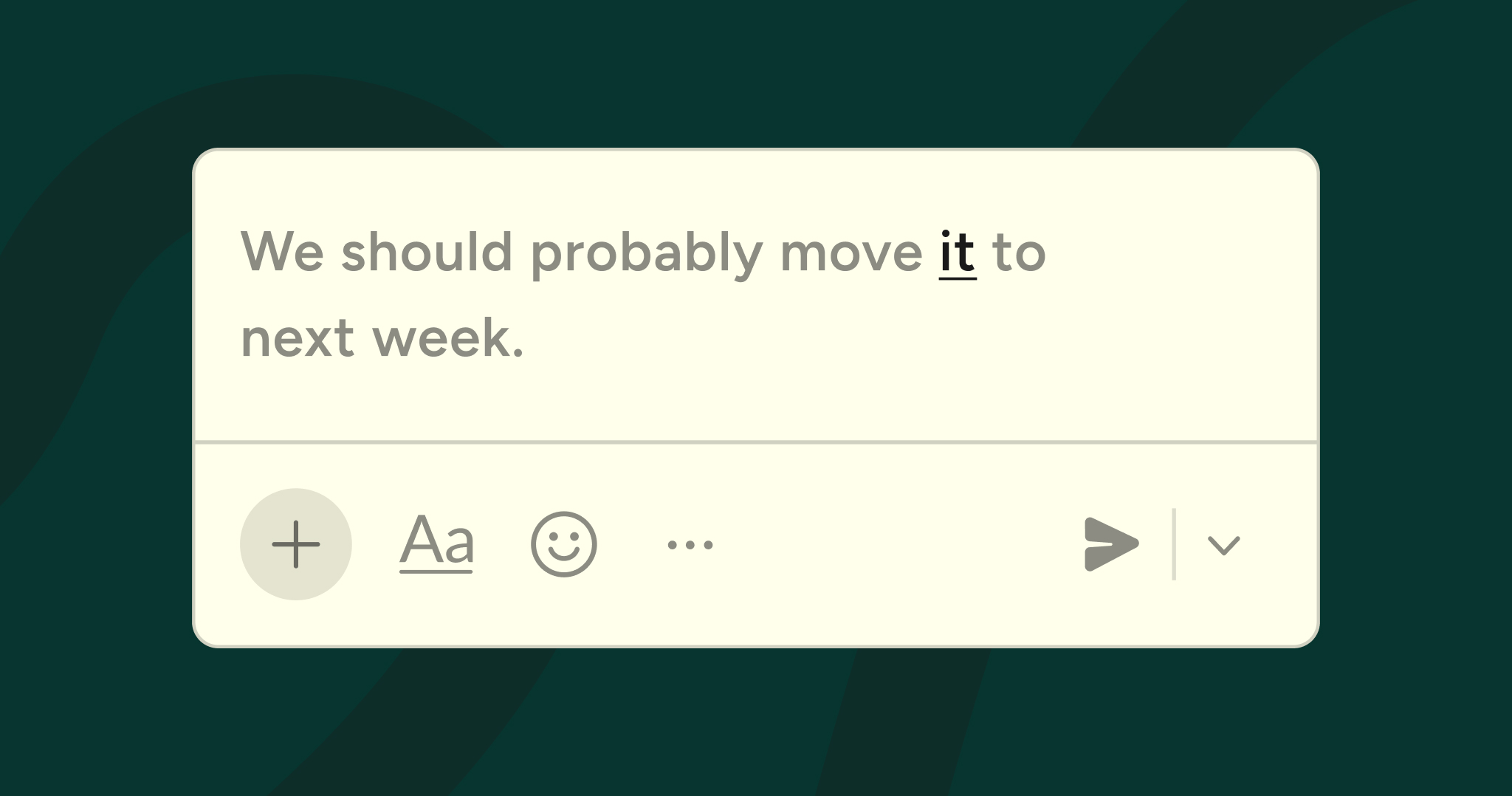
This is where Wispr Flow transforms mobile professional work. Flow isn't just voice-to-text transcription, it's an AI writing partner designed specifically for professional communication. When you speak, Flow automatically edits your speech into polished, professional text. It removes filler words like "um" and "uh," structures your rambling thoughts into clear sentences, adds appropriate punctuation, and ensures grammatical correctness.
The result is professional-quality text at 4x the speed of typing. You can compose a comprehensive email response while walking to a meeting, dictate project updates during your commute, or capture detailed meeting notes by speaking naturally. The text that appears is ready to send, not a rough draft requiring cleanup.
For professionals, Flow's snippet library is particularly transformative. Create voice-activated templates for communications you send repeatedly. Say "client follow-up intro" and Flow inserts your standard opening paragraph for client check-ins. Say "meeting recap template" and your structured meeting summary format appears, ready to be filled in. Say "out of office" and your complete auto-reply message is composed.
These snippets work across all text input contexts, email, messaging apps, document editors, note-taking apps. They're not app-specific shortcuts but system-level voice commands that work everywhere you write. For professionals who send similar types of communications regularly, this eliminates enormous amounts of repetitive typing.
Flow also learns your professional vocabulary. Technical terms, client names, product names, industry jargon,Flow adapts to your specific language and ensures these terms are capitalized and spelled correctly. This eliminates the constant frustration of correcting specialized vocabulary that standard voice typing inevitably mangles.
Currently available on iOS, Mac, and Android, Wispr Flow brings truly intelligent voice writing to every major platform. For professionals who do significant writing on their Android phones, download Wispr Flow to experience voice input designed for professional work. Mobile productivity has been bottlenecked by input methods for years, and voice with AI editing is how that bottleneck finally gets resolved.
Automation for professional workflows
Repetitive tasks are productivity drains. Automation turns regular patterns into automatic behaviors, freeing mental energy for work that requires actual thought. Android's automation capabilities, particularly through apps like Tasker, enable sophisticated workflow automation that rivals desktop automation tools.
Common professional automations include automatically enabling Do Not Disturb during work hours, sending arrival notifications when you reach client locations, launching specific apps when you connect to your car's Bluetooth, setting reminders based on location, or adjusting phone settings based on calendar events. These automations run invisibly, making your phone adapt to your workflow rather than requiring constant manual adjustments.
For simpler automation, Android's built-in Digital Wellbeing features include Wind Down and Focus Mode, which can automatically restrict apps during specified times. Google Assistant Routines let you trigger multiple actions with a single voice command,"Start my workday" can disable personal app notifications, open your calendar and email, and set your status to available on messaging platforms.
IFTTT (If This Then That) provides easier automation for specific triggers and actions. Connect your work calendar to automatically log work hours in a timesheet. Automatically save email attachments to specific folders in your cloud storage. Send automatic notifications to team members when you complete specific tasks. IFTTT's mobile app makes it easy to set up these automations from your phone.
The key to effective automation is starting simple. Identify one repetitive task you do daily and automate it. Once that automation is reliable and useful, add another. Building a comprehensive automation system takes time, but each automation provides ongoing time savings and reduced cognitive load.
Managing focus and minimizing distractions
Smartphones are inherently distracting, and professional work requires sustained focus. Android provides tools to manage these distractions without disconnecting entirely from important communications. Focus Mode (in Digital Wellbeing settings) lets you pause distracting apps while keeping work-critical apps active.
Configure Focus Mode to include personal social media, games, news apps, and entertainment, but exclude work email, messaging, and essential tools. Schedule Focus Mode to automatically activate during work hours, or manually toggle it when you need concentrated work time. You can override it temporarily if needed, but the friction of overriding creates accountability.
Do Not Disturb is essential for protecting deep work time. Configure it to allow calls and messages from starred contacts (important colleagues, family, key clients) while silencing everything else. Schedule Do Not Disturb for specific times, early mornings for focused work before meetings, after work hours for personal time, during your commute for reading or listening.
Notification management is critical. Most apps request notification permissions they don't need. Review all notifications in Settings > Notifications and disable them for any app that doesn't require immediate attention. For apps that need notifications, configure them to be silent, visible in your notification shade but not interrupting with sound or vibration.
Use Android's app timer feature to limit time in distracting apps. Set 30-minute daily limits on social media or news apps. When the timer expires, the app pauses, requiring deliberate action to continue. This creates awareness and friction around time-wasting behaviors without completely blocking access.
Professional mobile accessories
The right accessories significantly enhance professional mobile work. A quality phone case with a kickstand turns any surface into a stable video conferencing setup. A portable phone stand or tripod ensures stable positioning for calls and recordings. These are especially valuable when traveling or working from non-traditional spaces.
Wireless earbuds with good microphone quality improve audio in calls and video conferences. Look for models with active noise cancellation for working in noisy environments like coffee shops or airports. Keep them charged and in your bag so they're always available when needed.
A portable battery pack eliminates anxiety about phone battery during important workdays. Choose one with enough capacity to fully charge your phone at least once, with fast charging support to minimize downtime. Professional work often involves unexpected situations where you can't access power outlets,a battery pack ensures your phone remains available.
For professionals who write extensively on mobile, consider a portable Bluetooth keyboard. Compact folding keyboards fit in bags easily and transform your phone into a more capable writing device. While voice input with tools like Wispr Flow is faster for most writing, keyboards remain valuable for spreadsheet work, precise editing, and situations where speaking isn't appropriate.
A mobile hotspot device or tethering capability on your phone plan provides reliable internet access when working remotely. Public Wi-Fi is convenient but often unreliable and insecure. Having your own connection ensures you can work effectively from anywhere with cellular coverage.
Creating boundaries and sustainable work habits
The capability to work from anywhere creates the expectation to work from everywhere. Establishing clear boundaries is essential for sustainable professional mobile use. Communicate your availability expectations with colleagues and clients. Just because you can respond to emails at 10 PM doesn't mean you should create the expectation that you will.
Use work profiles to create physical boundaries. When you're done with work for the day, pause your work profile. All work apps, notifications, and data become invisible until you choose to reactivate them. This clear separation helps maintain work-life balance while keeping professional tools available when needed.
Schedule specific times for checking and responding to work communications rather than responding reactively throughout the day. Batch email processing into two or three focused sessions rather than checking constantly. This reduces context switching and allows for more sustained focus on actual work.
Recognize that not all professional work translates well to mobile. Strategic thinking, complex problem-solving, detailed analysis, and extensive writing benefit from larger screens, external keyboards, and distraction-free environments. Your mobile device excels at communication, coordination, quick responses, and staying informed, use it for what it does well rather than forcing all work onto mobile.
Conclusion
Your Android phone is capable of far more professional work than most people realize. With proper setup, security practices, the right apps, and efficient workflows, it becomes a genuine mobile office that extends your productivity beyond traditional workspace constraints. Professional mobile use isn't about replacing your computer, it's about having capable tools available whenever and wherever work needs to happen.
The strategies in this guide transform Android phones from notification viewers into professional work platforms. Security and work profiles protect sensitive information while maintaining personal privacy. Effective email, messaging, and calendar management keep you connected and organized. Document handling and video conferencing enable remote collaboration. Task management and automation reduce manual overhead. And voice input with tools like Wispr Flow eliminates the typing bottleneck that has limited mobile productivity for years.
Start by implementing the fundamentals, work profile setup, security essentials, and professional app configuration. Build from there by adding automation, optimizing communication workflows, and developing mobile-first habits that leverage what your phone does well. The goal is sustainable, effective professional mobile use that enhances your overall productivity rather than creating constant interruptions and partial attention.
Your Android device is already in your pocket. With the right approach, it becomes one of your most valuable professional tools. The future of work is increasingly mobile and flexible, make sure your Android phone is ready to support that future.
Frequently asked questions (FAQs)
1. Should I use my personal Android phone for work, or get a separate work phone?
This depends on your company's policies, the sensitivity of your work, and your personal preferences. Work profiles on Android provide excellent separation between work and personal data on a single device, making BYOD (bring your own device) practical for most professionals. However, if you work with highly sensitive information, want complete separation, or simply prefer keeping work and personal completely distinct, a separate work phone may be worth the inconvenience of carrying two devices. Many professionals find that one phone with a work profile provides the best balance.
2. How do I handle work emails and messages after hours without being constantly interrupted?
Use scheduled Do Not Disturb and work profile pausing to create boundaries. Configure email and messaging apps to only send notifications during work hours, or pause your work profile entirely when you're off. You can still manually check messages if needed, but you won't receive interrupting notifications. Communicate your boundaries clearly with colleagues, set expectations that you respond during business hours unless something is truly urgent. Most "urgent" work communications can wait until morning.
3. Is it secure to access company data on my personal Android phone?
Yes, when done properly. Work profiles create encrypted, separate spaces for company data that your employer can manage without accessing your personal information. Use strong authentication, keep your phone updated with security patches, avoid public Wi-Fi for sensitive work (or use a VPN), and follow your company's security policies. For most professional work, a properly configured personal Android phone is adequately secure. If you work with classified information or extremely sensitive data, consult your IT department about specific requirements.
4. Can I really be productive writing emails and documents on my phone?
With the right tools, absolutely. Traditional mobile typing is slow and frustrating, which creates the perception that serious writing requires a computer. However, voice input with AI editing changes this completely. Wispr Flow lets you compose professional emails and documents by speaking naturally, with the AI handling editing and formatting. This makes mobile writing not just possible but actually faster than typing on a computer keyboard for many communications. The bottleneck isn't the device, it's the input method.
5. What should I do if my work requires apps that aren't available on Android?
This is rare for general professional work, most major business apps (Microsoft Office, Salesforce, Slack, Zoom, etc.) work well on Android. However, some industry-specific or proprietary tools may only be available on iOS or desktop. In these cases, your options are using mobile web versions (many enterprise apps have mobile-optimized websites), using remote desktop apps to access your desktop computer from your phone, or accepting that certain tasks require a desktop or laptop. Evaluate whether the Android ecosystem supports your specific professional needs before committing to the platform.
6. How can I prevent my work phone usage from draining my battery?
Professional phone use does consume battery, especially video calls and location services. Enable Adaptive Battery in Settings to let Android learn and optimize for your usage patterns. Reduce screen brightness when possible. Close apps you're not actively using. Disable battery-draining features like constant location services for apps that don't need them. Carry a portable battery pack for days with heavy usage. Use battery saver mode when you're away from power sources for extended periods. Most Android phones can easily last a full workday with moderate professional use.
7. When is Wispr Flow coming to Android?
Download it today to experience truly intelligent voice writing on your phone. With Wispr Flow already available on iOS and Mac, Android users can now access the same powerful voice input across every major platform. For professionals who do significant writing on their Android phones, Flow brings voice with AI editing that makes mobile productivity faster and easier than ever.



.jpg)